

Amazon Shipping Label Crop
Prepare Amazon shipping labels using supported PDFs with their corresponding invoices. Include readable SKU and quantity details, choose individual labels or four on A4, and keep or remove invoice pages.
Amazon Shipping Label Crop workspace
Use a source that includes the matching invoice
SKU and quantity extraction depends on readable information in a supported label-and-invoice PDF. A label-only file may not include the product details needed for extraction.Add up to 30 PDFs, 30 MB each, and keep related pages in their expected sequence. Choose Label Only or 4 in 1, then Keep invoice or Remove invoice. Check every item in a multi-item order against its original invoice; a visible SKU does not prove that all products were recognized.
If SKU or quantity is missing
Check that the source includes the matching readable invoice and all item rows. Keep continuation pages in the original sequence. Compare every product and quantity with the order; a blank output quantity must not be treated as one.Use the missing-SKU and quantity checklist before trying another print layout.
Keep Delivery and Product Information Together
A SKU is the inventory code used to identify a product or variant, such as a particular size or color. Quantity indicates the number of units identified in the source information.Including these details on a label can help your team check an order without repeatedly switching between documents. However, extraction depends on readable text and a supported layout. Always verify missing, incomplete or unexpected details against the original order.
Choose Your Label Layout
| layout | what you get | when to use it |
|---|---|---|
| Label Only | Each prepared shipping label on its own page. | You need individual labels for your printing workflow. |
| 4 in 1 | Up to four prepared labels arranged on each A4 sheet with cutting guides. | You want to print several labels using compatible A4 paper or sheets. |
Choose Whether to Keep Invoices
| Invoice setting | what it does |
|---|---|
| Remove invoice | Leaves identified invoice pages out of the prepared output. |
| Keep invoice | Includes identified corresponding invoice pages after the label pages. |
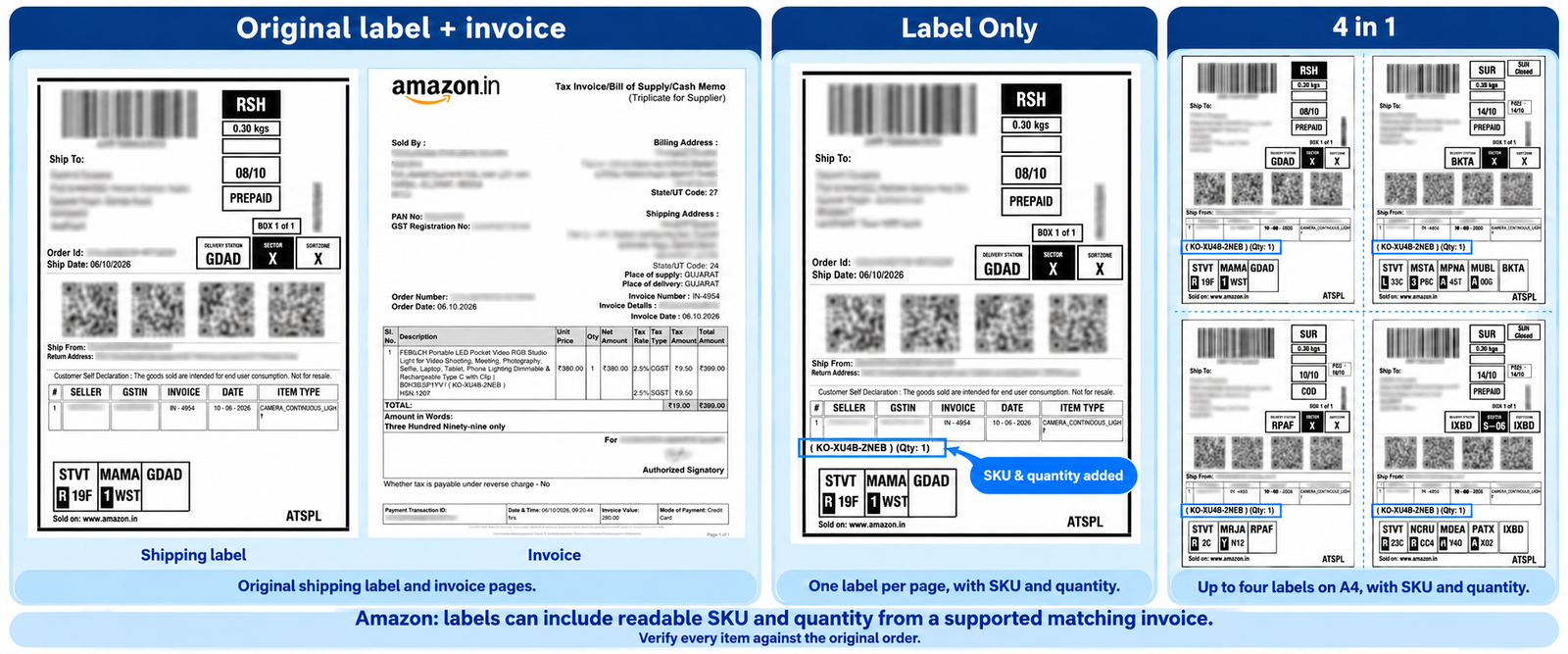
This supported example shows SKU and quantity added to individual and four-on-A4 labels. Extraction depends on readable matching invoice data. Label layout and invoice retention are separate settings: choose Keep invoice or Remove invoice as needed.
How to Prepare Amazon Shipping Labels
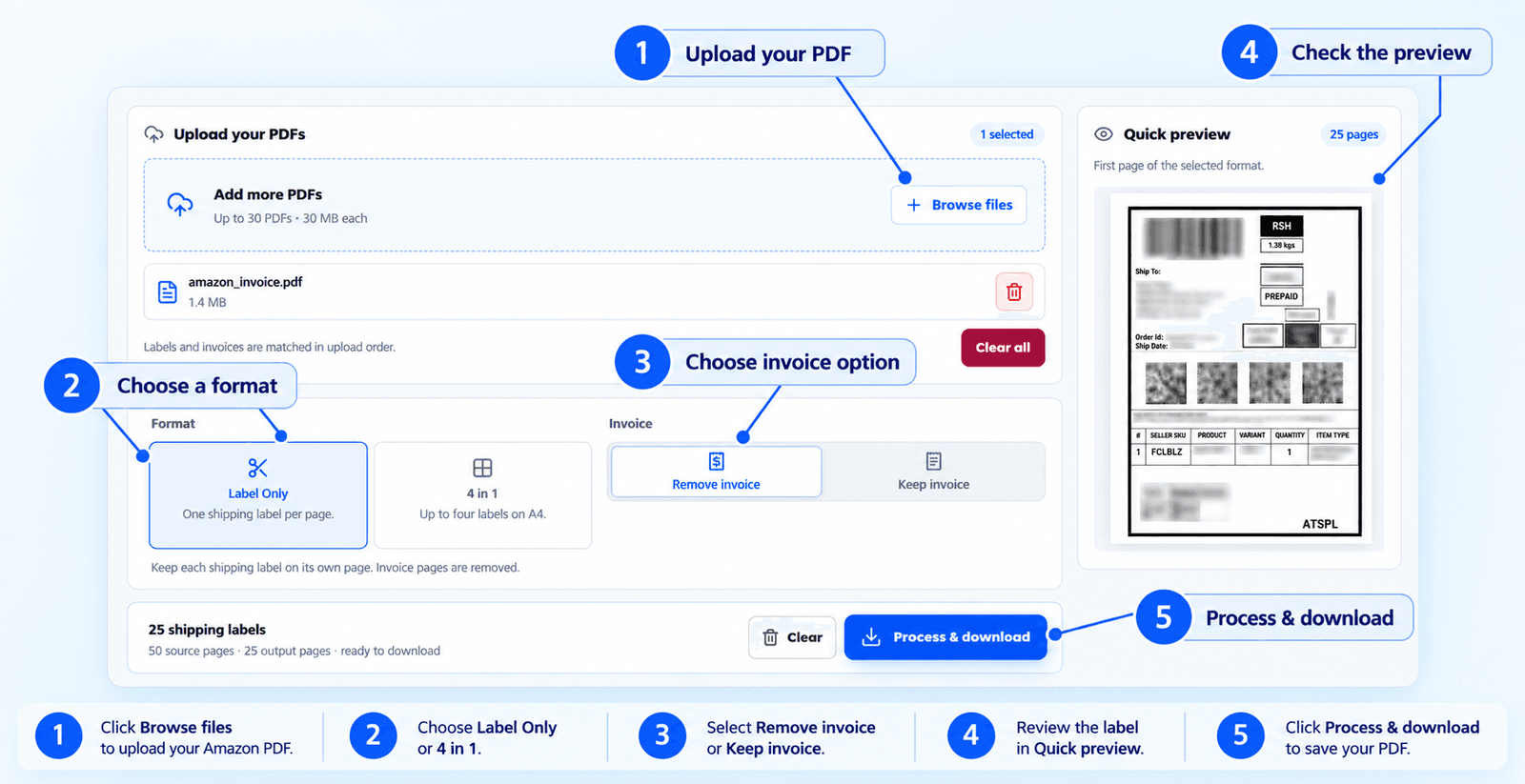
- Add the source PDFs. Use original documents containing Amazon shipping labels and their corresponding invoices.
- Check the selection. Remove unrelated files and preserve the expected label-and-invoice sequence.
- Choose a layout. Select Label Only or 4 in 1.
- Set invoice handling. Choose Remove invoice or Keep invoice.
- Review the preview. Check the prepared labels and any warning about unreadable SKU or quantity details.
- Process and download. Keep the page open until preparation finishes.
- Verify and print. Compare the downloaded result with the original orders, then print a sample before the full batch.
Check Multi-Item Orders Carefully
Example: one order with more than one productSuppose an order includes one blue item and two white items. A prepared label showing one readable SKU does not establish that all three units were recognized. Compare every item and quantity with the original order and corresponding invoice. If a value is missing, resolve it from the original records before dispatch; do not interpret a blank quantity as one. This scenario is illustrative.
Orders containing several products, variants or quantities need an individual check. Do not assume that one detected product code represents every item in a complex order.
Before sealing the parcel, confirm:
- The correct product and variant.
- The quantity required by the original order.
- The order reference and matching delivery label.
- Complete address and barcode information.
Supported Files and Practical Limits
Use original, readable Amazon PDFs wherever possible. Missing invoices, rearranged pages, scanned documents and unfamiliar layouts can affect matching or extraction.The tool prepares documents from your selected files. It does not connect to your Amazon seller account to independently verify orders.
Large batches also require available device memory. If processing struggles, try a smaller selection. Keep the original PDFs for order checks and invoice records.
If you encounter any issues, please feel free to contact us.
Frequently asked questions
Which Amazon document should I use?
Use original PDFs containing shipping labels and their corresponding invoices. Keep related pages in the expected sequence and leave out unrelated attachments.
Can the tool add SKU and quantity to labels?
It can include readable SKU and quantity details from supported source documents. A SKU is the product or variant code used in inventory. Verify the extracted details against the original order.
Can I keep the invoices in the output?
Yes. Keep invoice includes identified corresponding invoice pages after the label pages. Remove invoice leaves identified invoice pages out. Keep the original documents for order checks and records.
What should I do if a SKU or quantity is missing?
Check the original invoice and seller order before packing. A blank quantity is not an instruction to pack one unit. Verify multi-item orders individually.
Does the tool verify or update my Amazon orders?
No. It prepares files from the selected documents. It does not connect to your seller account to independently verify orders or update inventory.
Does it support every Amazon shipping document?
No universal compatibility is promised. Use original label-and-invoice PDFs with a supported readable layout. Test a sample rather than assuming every fulfilment or export format will be recognized.
Can I sort Amazon labels by SKU or courier?
The current Amazon workspace offers label layout and invoice handling. SKU and Courier ordering are available in the Flipkart and Meesho tools, not as sorting controls in this Amazon workspace.


