Online Image Converter – JPG, PNG, WebP and AVIF
Convert JPG, PNG or WebP images to an enabled JPG, PNG, WebP or AVIF output. Add up to 30 images, 30 MB each, and download individual results or a ZIP.
Online Image Converter – JPG, PNG, WebP and AVIF workspace
Check the source formats before choosing an output
Add up to 30 JPG, PNG or WebP images, 30 MB each. Choose an enabled JPG, PNG, WebP or AVIF output. The interface can disable a format already present among the selected sources; separate mixed selections when necessary.Conversion changes format and may change file size or appearance. JPG cannot preserve transparency. Check the downloaded background and edges before replacing a transparent original.
Common supported conversions
| Source | Output to choose | Important check |
|---|---|---|
| PNG or WebP | JPG | Transparent areas cannot remain transparent |
| JPG or PNG | WebP | Confirm the receiving website accepts WebP |
| JPG or WebP | PNG | Conversion does not automatically remove a background |
| JPG, PNG or WebP | AVIF, when enabled | Confirm destination and viewer support |
For transparency checks, use the PNG/WebP-to-JPG guide.
Supported Input and Output Formats
| ITEM | Current Support |
|---|---|
| Input formats | JPG/JPEG, PNG and WebP |
| Output choices | Available JPG, PNG, WebP and AVIF options |
| Maximum selection | 30 images |
| Maximum source-file size | 30 MB per image |
| Downloads | Individual images or a ZIP archive for multiple completed results |
An output format already present among the selected sources is disabled. For example, if a batch contains JPG and PNG files and you need PNG output, remove the PNG sources and convert the JPG files separately. Renaming a filename extension does not convert the image.
Choose a Format for Your Next Task
| output format | when to consider it | what to check |
|---|---|---|
| JPG | Product photographs for destinations that accept JPEG. | JPG does not support transparency. Inspect the resulting background. |
| PNG | Graphics or images where transparency may be needed. | Files can be larger than other formats. |
| WebP | Website images where WebP is accepted. | Confirm compatibility with the receiving platform or application. |
| AVIF | Modern web-image workflows that support AVIF. | Check upload and viewer support before converting a full batch. |
Convert Several Images in One Workflow
Prepare a group of product photos using the same enabled output format. Download completed files individually, or save multiple results together in a ZIP archive.A ZIP archive packages several files into one download. Extract it before uploading the individual images to a marketplace or website.
Test one converted image at the destination before preparing a large selection in the same format.
How to Convert Product Images
- Add your files. Select JPG, PNG or WebP images from your device.
- Review the selection. Remove unwanted files before processing.
- Choose an output format. Select one of the enabled format options.
- Start conversion. Click Convert images and keep the page open until processing finishes.
- Inspect a result. Check product detail, colors and background appearance.
- Download your files. Save individual results or download the completed batch together.
- Check the destination. Confirm that the converted file is accepted before using it in your workflow.
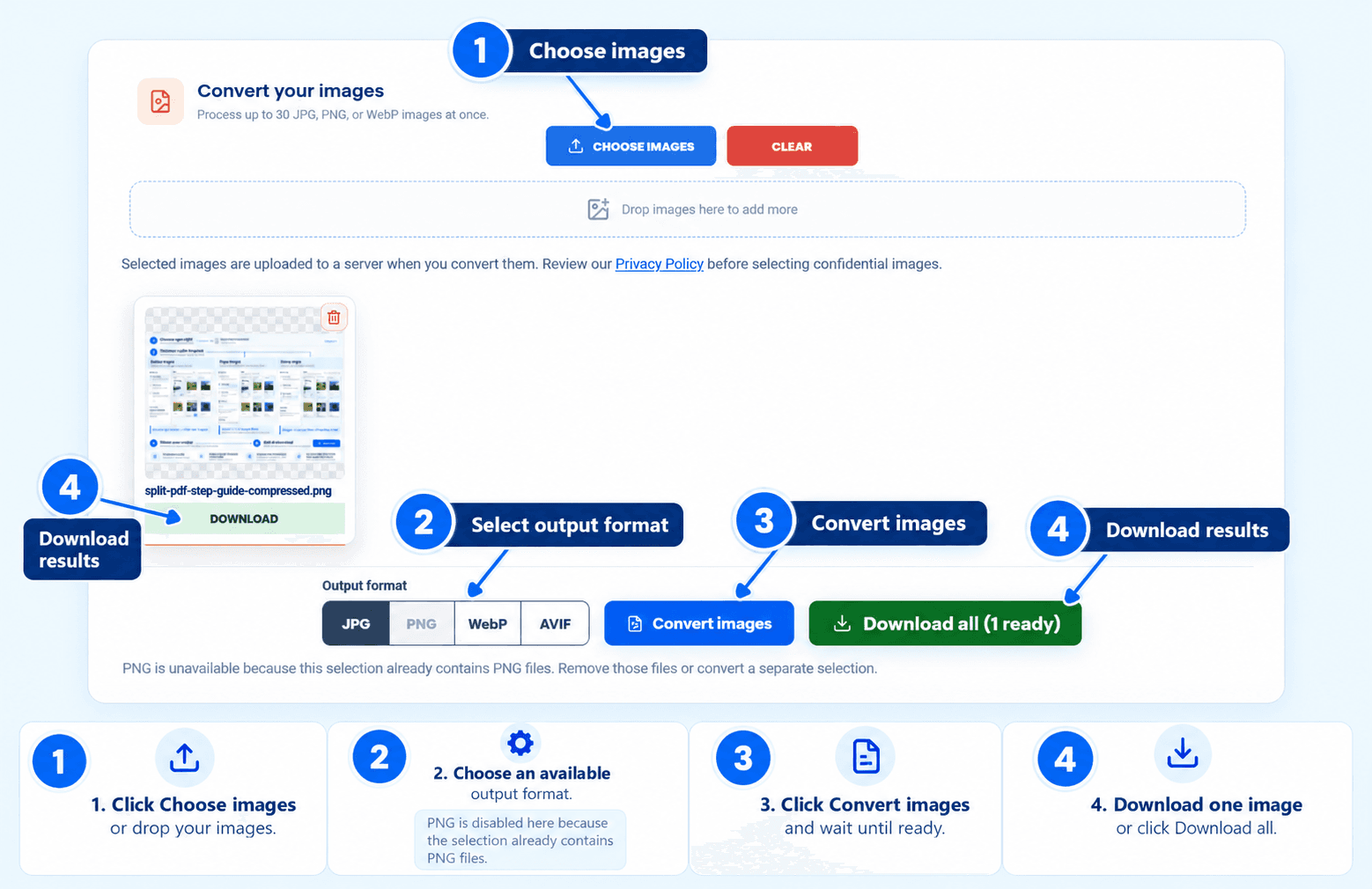
Choose your images, select an enabled output format and click Convert images. When processing finishes, download individual results or use Download all. An output format already present in the source selection may be disabled.
Conversion Changes the Format, Not the Product Photo
Changing a format does not automatically improve a blurry image, remove its background or make it marketplace-compliant.Use the appropriate tool when another adjustment is needed:
- Image Cropper to remove unwanted edges.
- Image Resizer to change pixel dimensions.
- Image Compressor when reducing file size is the main task.
Check the Converted Image Before Publishing
When converting a transparent graphic to JPG, inspect the background in the saved result. JPG cannot retain transparency. If transparency is required, use an enabled format that supports it and confirm that the receiving application accepts that format.Open the downloaded result and confirm:
- The destination supports the output format.
- Product colors and important details remain suitable.
- The background appears as expected.
- Dimensions and file size meet the upload requirements.
- The file represents the correct product variant.
If you encounter any issues, please feel free to contact us.
Frequently asked questions
Which output formats are available?
Output choices include enabled JPG, PNG, WebP and AVIF options. Formats already present among the selected source images may be disabled.
Can I keep transparency when converting to JPG?
No. JPG does not support transparency. Inspect the converted background before using the image in a listing.
Will every converted image be smaller?
No. File size depends on the source content and output encoding. Use Image Compressor when size reduction is the main task.
Can I download converted images together?
Yes. Multiple completed results can be packaged in a ZIP archive. Extract it to access the individual image files.
Which files can I upload?
The public converter accepts JPG/JPEG, PNG and WebP inputs, up to 30 MB each. Select no more than 30 images.
Can I upload HEIC or AVIF images here?
The current Image Converter accepts JPG/JPEG, PNG and WebP input. AVIF is an output option, not an input format in this workspace.