
Online Video Converter – MP4, WebM & MOV
Convert MP4, MOV, WebM, MKV, AVI or M4V videos to MP4, WebM or MOV. Choose one output format for your batch and download individual files or a ZIP.
Online Video Converter – MP4, WebM & MOV workspace
Choose the format your destination accepts
Select MP4, WebM or MOV for the batch. The converter targets the source resolution and uses the first video and audio tracks when supported. Additional audio tracks, subtitles and metadata are not retained.Read the workspace’s processing notice before selecting files. After conversion, open the saved output in the intended player and check duration, picture and sound. A familiar extension does not establish codec compatibility.
How to convert a video
- Select your videos. Choose files or drag them into the selection area. Add more videos before processing if you need a batch, then check the workspace notice for the current processing method.
- Choose the output format. Select MP4, WebM, or MOV. Your choice applies to all selected videos.
- Start conversion. Select the Convert button. Each file shows its own status, and completed results become available individually.
- Check a preview. Use the preview icon to open a popup. The original video is shown before processing and the result after conversion, where browser playback is supported.
- Download your results. Save each completed video using its download icon. When at least two files are ready, download them together in a ZIP.
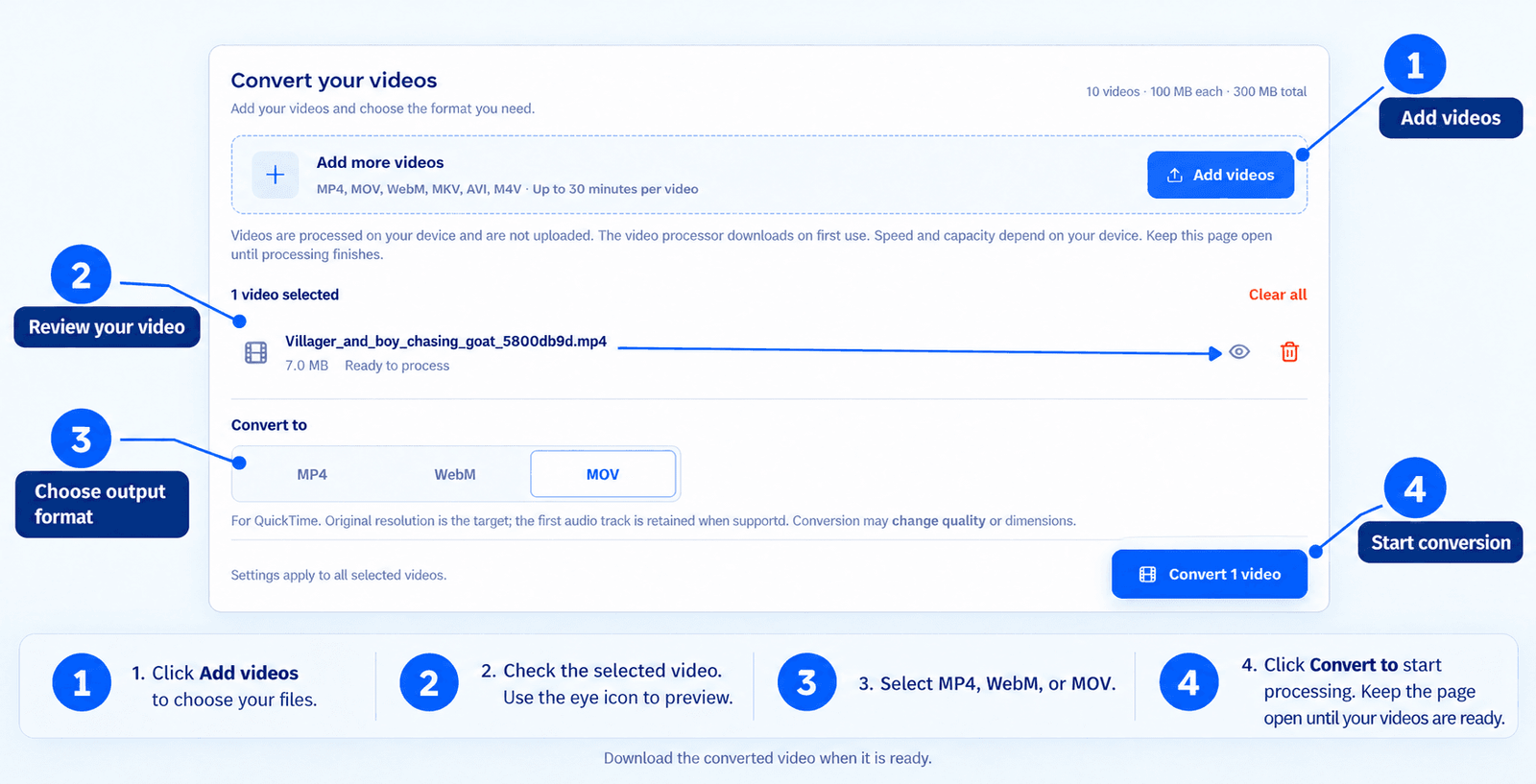
Add your videos, choose an output format and start conversion. Download each completed result using its download icon, or save a ZIP when at least two videos are ready.
Which video format should you choose?
| Output format | when to choose it |
|---|---|
| MP4 | A practical starting point for sharing and playback across many devices and platforms. |
| WebM | For websites and browsers that support WebM playback. |
| MOV | For QuickTime-compatible playback or workflows that request a MOV file. |
Common conversions and what to check
| Source → output | Reason to choose it | Check after download |
|---|---|---|
| MOV → MP4 | Your destination accepts MP4 | Duration, picture and first audio track |
| MKV or AVI → MP4 | Your destination requires MP4 | Codec compatibility and complete playback |
| MP4 → WebM | Your website or player accepts WebM | Playback in the intended browser |
| Supported video → MOV | Your receiving workflow requests MOV | Playback in the intended application |
What changes during conversion?
Conversion changes the file format and may also change quality and file size. A different output format does not guarantee a smaller file or unchanged quality. The converter targets the source resolution, although encoding can make small dimension adjustments for compatibility. Check the saved video in the intended player before using it.Supported uploads and batch limits
Upload videos in MP4, MOV, WebM, MKV, AVI, or M4V format. Choose MP4, WebM, or MOV for the output.You can add up to 10 videos per batch, with a limit of 100 MB per file and 300 MB total. Each video can be up to 30 minutes long. Damaged files or unsupported codecs may not convert even when the file extension is accepted.
Each file has its own result or error. A failed video does not stop the remaining files. Remove individual files using the delete icon or use Clear all to empty the selection. Changing the output format clears previous results so you can convert again with the new choice.
Have a business enquiry or a tool issue? Contact us.
Frequently asked questions
Can I convert MOV, MKV, or AVI to MP4?
Yes. These upload formats are accepted. Select MP4 and start conversion. The file must be within the size and duration limits and contain supported video and audio streams.
Can I convert multiple videos together?
Yes. Add up to 10 videos within the 100 MB per-file and 300 MB batch limits. Choose one output format for the batch and download completed videos individually or in a ZIP.
Does conversion compress the video?
This tool focuses on changing formats. Some conversions require re-encoding, which may change file size and quality, but there are no compression controls. Use the Video Compressor to choose a compression level or lower resolution.
Will the converted video keep its sound?
The converter attempts to retain the first audio track when one is present and supported. Additional audio tracks and subtitles are not retained. A silent source remains silent. Check sound in the downloaded result using the intended player.
Why does my video not play in the preview?
Browser support varies by format and codec. A video may still convert even if the original preview does not play. Download a completed result and open it in a compatible player if needed.
Can I convert to MP3 or GIF?
No. The current outputs are MP4, WebM and MOV video files.
Are my videos uploaded for conversion?
Check the processing notice in the workspace before selecting files. When it shows on-device processing, selected video contents stay on your device for this operation. If it shows server processing, selected videos are uploaded when you start. Processor downloads, analytics and other website requests are separate from the video contents.