
Image Resizer
Resize JPG, PNG or WebP images with custom width and height or a preset. Queue up to 30 images, 30 MB each, and preview and download each result separately.
Image Resizer workspace
Resize Images to the Dimensions You Need
Resize photos and graphics for websites, documents, social posts or product listings. Set the dimensions you need and prepare a separate version without installing a desktop editing application.Enter the required width and height in pixels, or start with an available size preset. Review the resized preview before downloading.
You can select up to 30 images, with a maximum size of 30 MB per file. Work through the queue and adjust each image individually.
Set Custom Width and Height
Use custom dimensions when your destination specifies an image size.For example, 1200 × 800 pixels means the image is 1200 pixels wide and 800 pixels high. Enter the dimensions required for your particular upload rather than choosing a size only because it is larger.
Image dimensions and file size are different. Resizing changes width and height; it does not guarantee that the result will meet a particular KB or MB limit.
Keep Your Product’s Proportions
Enable Keep proportions to link width and height to the source image’s ratio. Changing one dimension adjusts the other. If you need an exact square without stretching, crop to a square before resizing.Turning this option off lets you set width and height independently, but it can stretch or squeeze the subject. Check the preview carefully so the product remains accurately represented.
If you need a different shape without distorting the product, use the Image Cropper to adjust the framing before resizing.
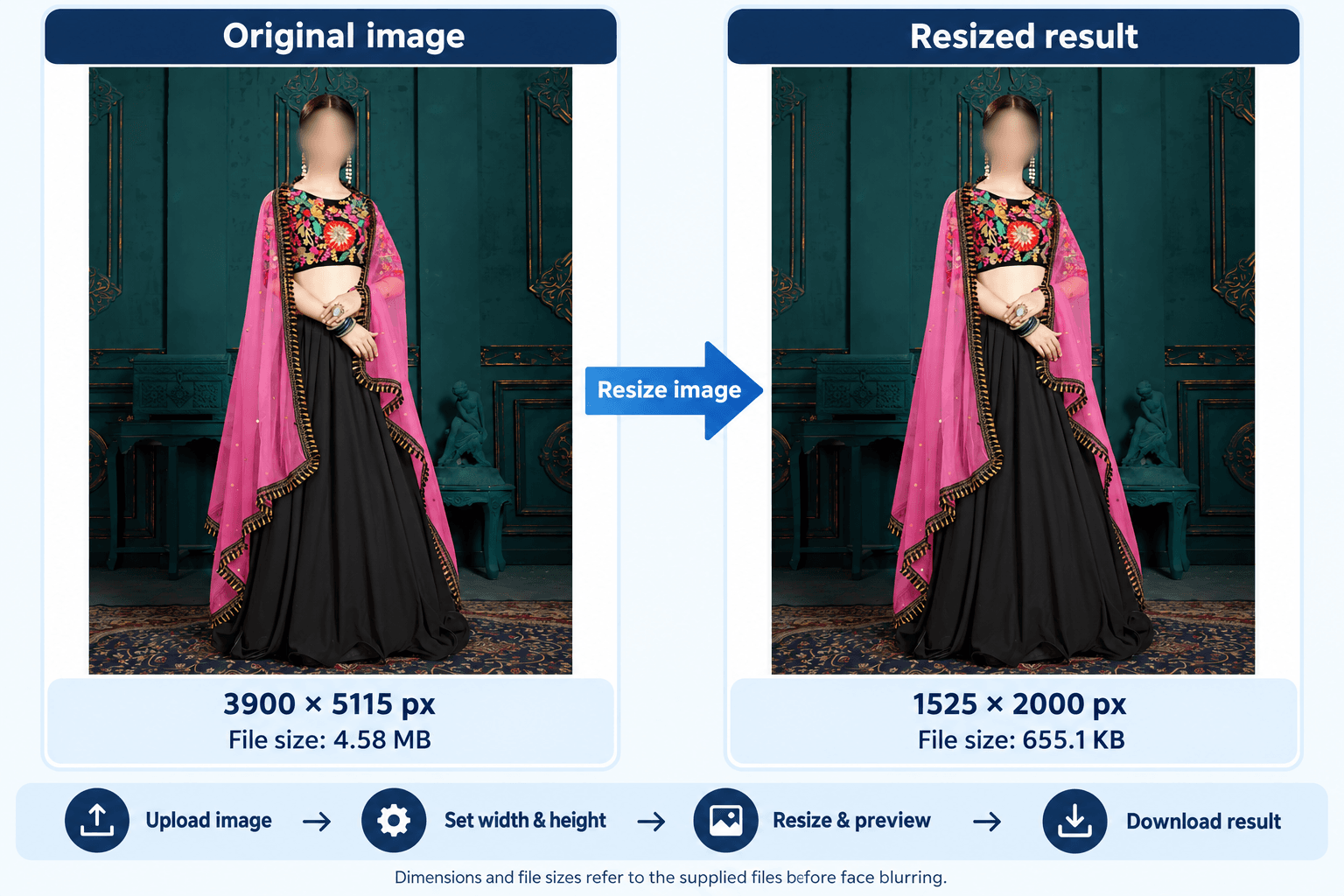
In the example shown, dimensions changed from 3900 × 5115 to 1525 × 2000 pixels, retaining the full composition. File size changed from 4.58 MB to 655.1 KB. File-size changes depend on the source and output encoding; resizing does not guarantee a particular KB or MB target.
Start with an Available Preset
The tool includes the following presets:| Preset Label | Dimensions |
|---|---|
| Amazon product | 2000 × 2000 pixels |
| Flipkart product | 1000 × 1000 pixels |
| Shopify product | 2048 × 2048 pixels |
| Marketplace banner | 1920 × 600 pixels |
| Instagram square | 1080 × 1080 pixels |
| Instagram portrait | 1080 × 1350 pixels |
| Facebook post | 1200 × 630 pixels |
| YouTube thumbnail | 1280 × 720 pixels |
Selecting a preset uses the current Keep proportions setting. When it is enabled, the image fits within the preset’s width and height without changing its original proportions, so one output dimension may be smaller than the preset. Turn Keep proportions off only when you intentionally want both exact dimensions; this can stretch or squeeze the image. If you need an exact shape without stretching, crop the original to that shape first, then resize it. Review the preview before downloading.
Avoid Unwanted Enlargement
Enable Do not enlarge smaller images when you want to prevent resizing beyond the source dimensions.If the requested dimensions would enlarge the image, the tool rejects that request. Choose smaller dimensions or change the setting if enlargement is intentional.
Increasing pixel dimensions does not restore missing detail. A small or blurry source may still look blurry when enlarged.
How to Resize Your Images
Download the current resized result before choosing another image in the queue. Switching sources resets the edit settings and the current result.- Add your files. Select supported JPG, PNG or WebP images.
- Choose an image. Select the file you want to edit from the queue.
- Set the dimensions. Enter width and height or choose a preset.
- Review the controls. Check Keep proportions and Do not enlarge smaller images.
- Select Resize & preview. Inspect the resized result.
- Download the image. Save the completed version before switching files.
- Continue through the queue. Select the next image and repeat.
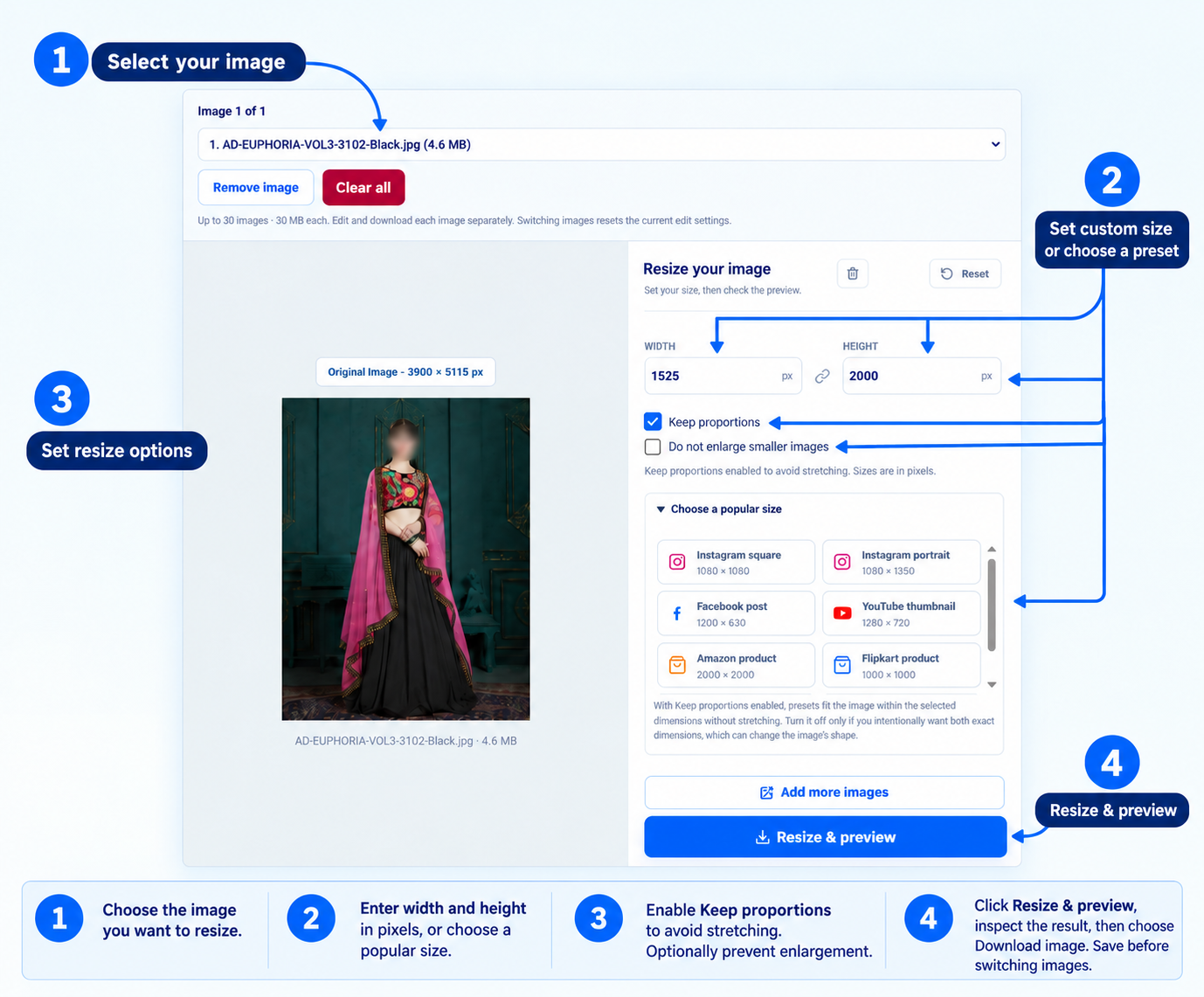
Select an image, enter dimensions or choose a preset, and enable Keep proportions to avoid stretching. Select Resize & preview, inspect the result, then choose Download image. Save before switching images.
Supported Files and Limits
| Item | Current Support |
|---|---|
| Input formats | JPG/JPEG, PNG and WebP |
| Maximum selection | 30 images |
| Maximum source-file size | 30 MB per image |
| Dimension controls | Whole numbers from 1 to 12,000 pixels |
| Pixel limit | Source and output images must not exceed 40 million pixels |
| Downloads | Individual resized images |
Check the Downloaded Result
Before uploading a product image, confirm that:- The dimensions match your intended use.
- The product has not been stretched or squeezed.
- Important details remain clear.
- The file format is accepted by the destination.
- The file size meets its upload limit.
Need to reduce a video as well? Use Video Compressor for quality and resolution controls.
If you encounter any issues, please feel free to contact us.
Frequently asked questions
What is an image resizer used for?
An image resizer changes the width and height of an image for a website, product listing, social media layout, online form, or other digital use.
How can I avoid stretching a product photo?
Keep proportions enabled. It links width and height to the source ratio. Crop first if you need another shape without distorting the product.
What happens when I choose a preset?
A preset uses your current Keep proportions setting. When it is enabled, the image fits within the preset dimensions without stretching, so one output dimension may be smaller. Turn it off only when you intentionally want both exact dimensions. Crop first if you need a different shape without distortion.
What does Do not enlarge smaller images do?
When enabled, it rejects requested dimensions that would enlarge the source. Choose smaller dimensions or change the setting if enlargement is intentional.
Do marketplace presets guarantee listing acceptance?
No. They are starting points. Check current requirements for the marketplace, product category and image placement.
Which files can I resize?
The public workspace accepts JPG/JPEG, PNG and WebP images, up to 30 MB each. You can queue up to 30 images.
Can I resize all queued images in one operation?
The current tool edits and downloads one selected image at a time. Queue up to 30 images and save each result before switching files.
Does resizing guarantee a smaller file in KB?
No. Resizing sets pixel dimensions. File size also depends on content and encoding. Use Image Compressor if reducing file size is the main task.


