

Flipkart Shipping Label Crop
Crop supported Flipkart shipping-label PDFs for printing. Choose individual labels, four labels on A4, or an invoice layout. Keep the original order or sort using readable SKU or courier details.
Flipkart Shipping Label Crop workspace
Choose the output before processing
Use Label Only for individual parcel labels, 4 in 1 for an A4 sheet, Single page to retain the original label-and-invoice page, or Separate when the invoice section can be recognized.Add up to 30 original Flipkart PDFs, 30 MB each. Start with Original order if your packing team follows the source sequence. Select SKU or Courier only when those fields are readable and the resulting sequence suits your packing process.
Check the PDF size before choosing printer paper
Label Only crops the recognized source area; it does not automatically make every output a 4 × 6-inch page. For 4 in 1, print the prepared A4 sheet rather than applying another four-pages-per-sheet layout in the printer dialog.Open the saved PDF, check its page size and inspect complete address lines and barcode edges. Print one sample using paper and scaling suited to that output before releasing the batch.
Choose the Right Printing Layout
| layout | what you get | when to use it |
|---|---|---|
| Label Only | Cropped shipping labels without the invoice section. | You need parcel labels and manage invoices separately. |
| 4 in 1 | Up to four labels arranged on each A4 sheet, with cutting guides | You want to print multiple labels on compatible A4 paper or sheets. |
| Single page | The label and invoice together on the original page. | Your packing process needs both sections together. |
| Separate | Each label followed by its invoice on a separate page. | You need labels and invoices separated while keeping them associated. |
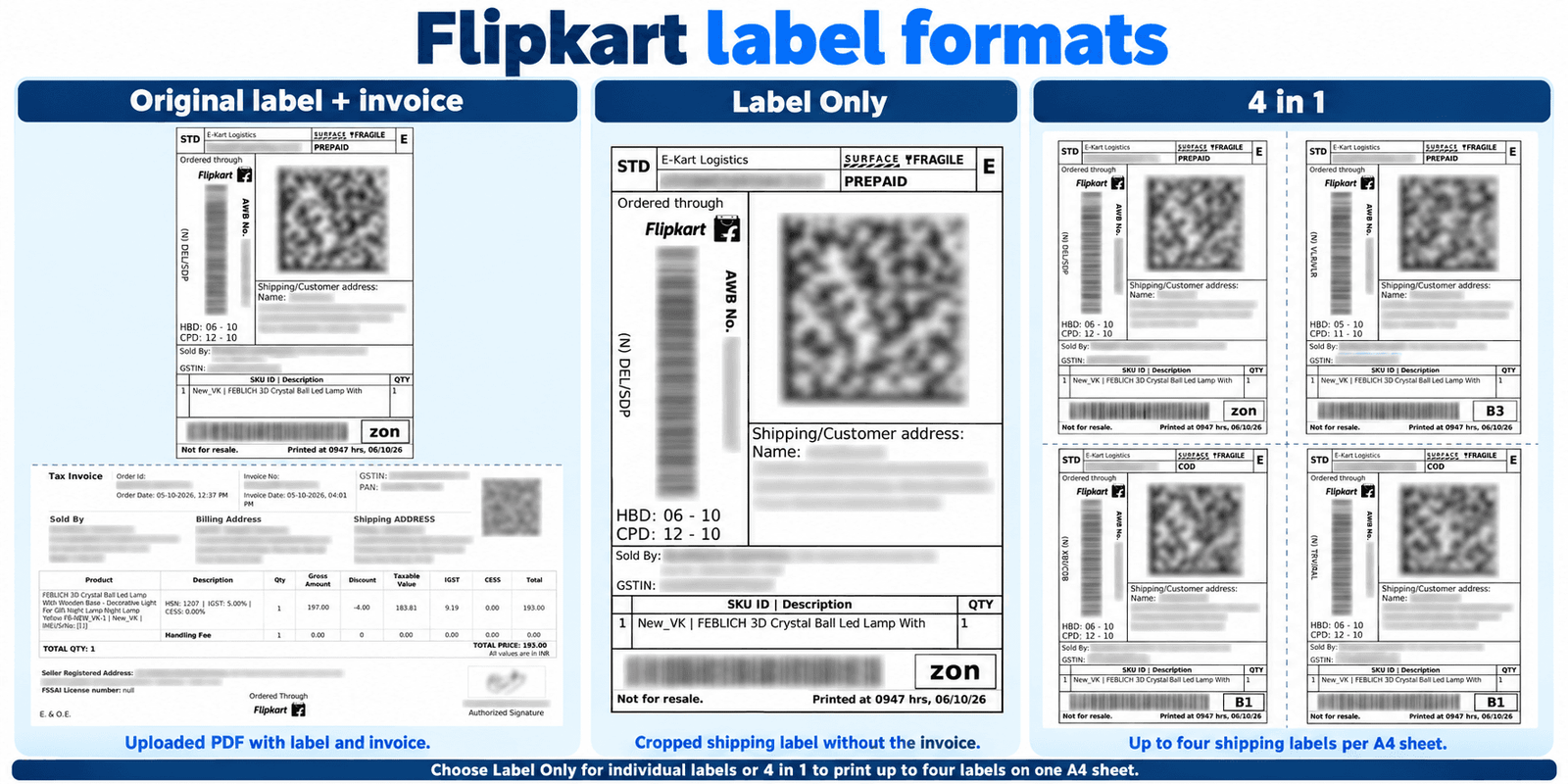
This example compares an original Flipkart label-and-invoice page with Label Only output. Label Only excludes the invoice section; use Single page or Separate when you need an invoice layout. The cropped output is not automatically a fixed 4 × 6-inch page.
Organize Labels for Picking and Dispatch
Choose the order that suits your workflow:- Original: Keep the selected-file and source-page order.
- SKU: Sort labels using readable product codes. This can help your team work through similar products together.
- Courier: Sort labels using recognized courier information to organize the dispatch documents.
How to Crop Flipkart Shipping Labels
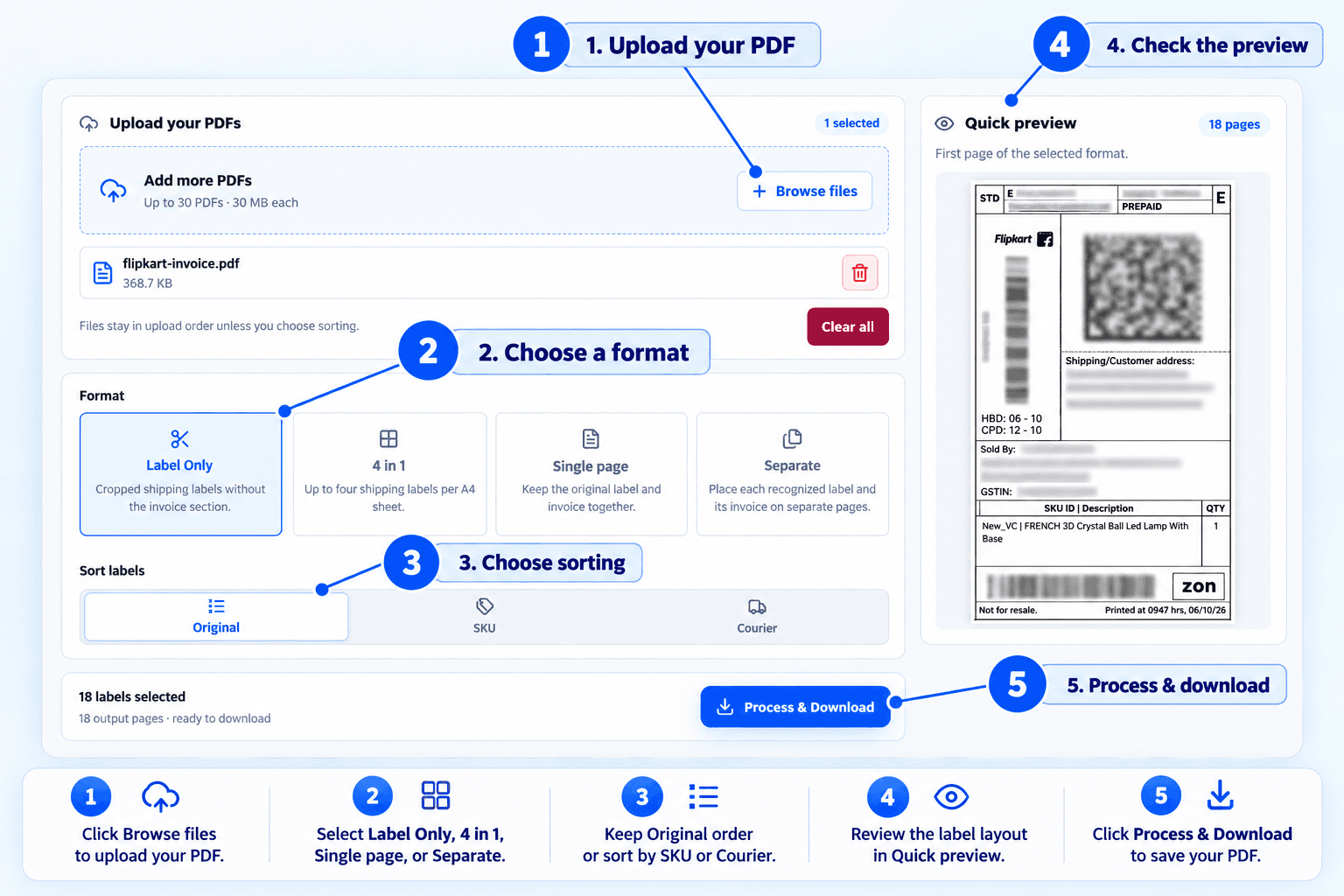
- Add your PDFs. Select the original Flipkart shipping documents from your device.
- Review the selection. Remove unrelated files or use Clear all to start again.
- Choose a layout. Select Label Only, 4 in 1, Single page or Separate.
- Choose the order. Keep Original order or sort by SKU or Courier.
- Check the preview. Review the prepared output and any recognition warnings.
- Process and download. Select Process & Download and keep the page open until the file is ready.
- Print a sample. Check the downloaded PDF and printer settings before printing the full batch.
Check These Details Before Dispatch
Example: a batch that does not fill the last sheetSuppose your source contains five recognized labels and you choose 4 in 1. Check the final sheet as carefully as the full sheet: it may contain fewer than four labels. If you also sort by SKU or courier, match each printed label to its order reference rather than to the next parcel in the original stack. This is an illustrative checking scenario, not a measured result from your file.
Compare the output with the original order information. Confirm that the delivery address, barcode, order reference and relevant product details remain complete.
Include multi-item orders and longer addresses in your checks. Sorting helps organize labels, but it does not confirm that the correct products have been packed.
Use paper and scaling settings that match the downloaded PDF. A cropped label is not automatically a fixed 4×6-inch document. Print a sample to check readability and clipping.
Supported Files
Use original, readable Flipkart PDFs wherever possible. Scanned pages, damaged documents, password protection or changed marketplace layouts can affect processing.Large batches also depend on available device memory. If your browser struggles, try a smaller selection.
If you encounter any issues, please feel free to contact us.
Frequently asked questions
Is the Flipkart Shipping Label Crop tool free?
Yes. The current public tool is free to use and does not require an account.
Which print layouts are available?
Choose Label Only, 4 in 1, Single page or Separate. Layout availability depends on the tool recognizing the required content in your source PDF.
Can I print four labels on an A4 sheet?
Yes. Choose 4 in 1 to arrange up to four labels on each A4 sheet with cutting guides. The final sheet may contain fewer labels. Check paper size, scaling and barcode readability with a sample print.
Can I keep the invoice?
Yes. Single page keeps the original label-and-invoice page. Separate places each label and its recognized invoice on different pages. Keep your original records regardless of the print layout.
Can I sort labels by SKU or courier?
Yes, when the relevant details are readable. Original keeps the source order. SKU uses product codes, while Courier uses recognized courier details. Labels with missing sorting values may appear at the end.
Does this create a new shipping label or buy postage?
No. It prepares an existing supported Flipkart PDF. It does not create an order, buy postage or update a shipment.
How many Flipkart PDFs can I add?
Add up to 30 supported PDFs, with a maximum size of 30 MB each. Try a smaller batch if your device struggles.


