Merge PDF
Combine 2–30 PDFs in your chosen file order, with up to 30 MB per source file. Merge documents in your browser and download one PDF.
Merge PDF workspace
Merge complete PDF files in your chosen order
Select 2–30 PDFs, up to 30 MB per file. Move files with the up and down arrows before merging. The current workspace combines complete files; it does not rearrange individual pages within a source.The public workspace processes selected PDF contents in your browser. After saving, check the first and last page of each source at the joins in the combined document.
Need pages from only part of a source?
The merger moves complete source files. To include only selected pages, prepare those pages with Split PDF, then add the resulting PDF in the intended position.Before sharing, use the merged-document checklist to verify page count and the joins between sources.
Keep Related Records Together
Use the merger when you need to:- Combine invoice PDFs for an internal review.
- Bring shipping-document batches into one print file.
- Organize supplier documents with supporting records.
- Prepare related PDFs for sharing with your team.
- Keep a report and its attachments in a clear reading order.
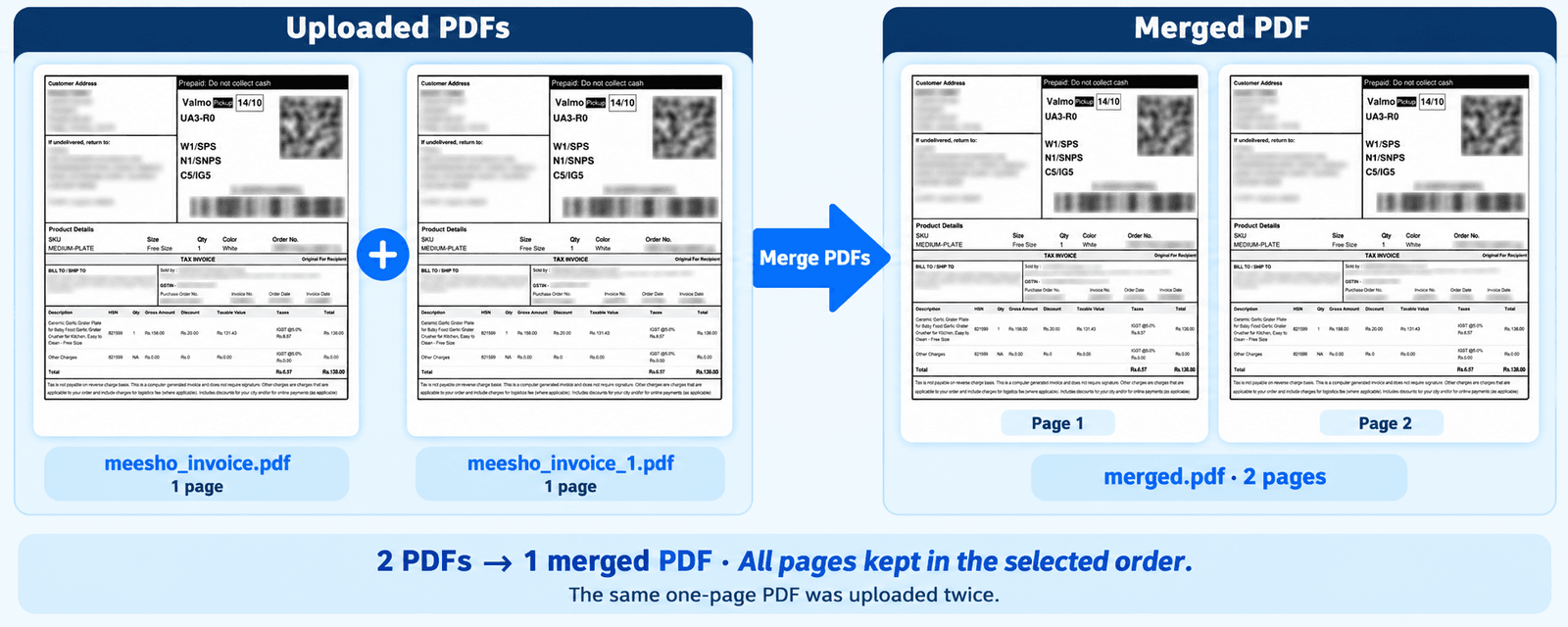
In this example, the same one-page PDF was selected twice, producing one two-page PDF. Merging retains both copies; it does not remove duplicate pages. The output follows the selected whole-file order.
How to Merge PDF Files
- Add your documents. Select at least two PDFs from your device.
- Review the file list. Check the names and remove unwanted documents.
- Arrange the order. Use the arrows to move files into the required sequence.
- Select Merge & Download. Keep the page open while the combined PDF is prepared.
- Open the downloaded file. Check the page count, document transitions and final page.
- Save or share the result. Keep your original PDFs for future changes.
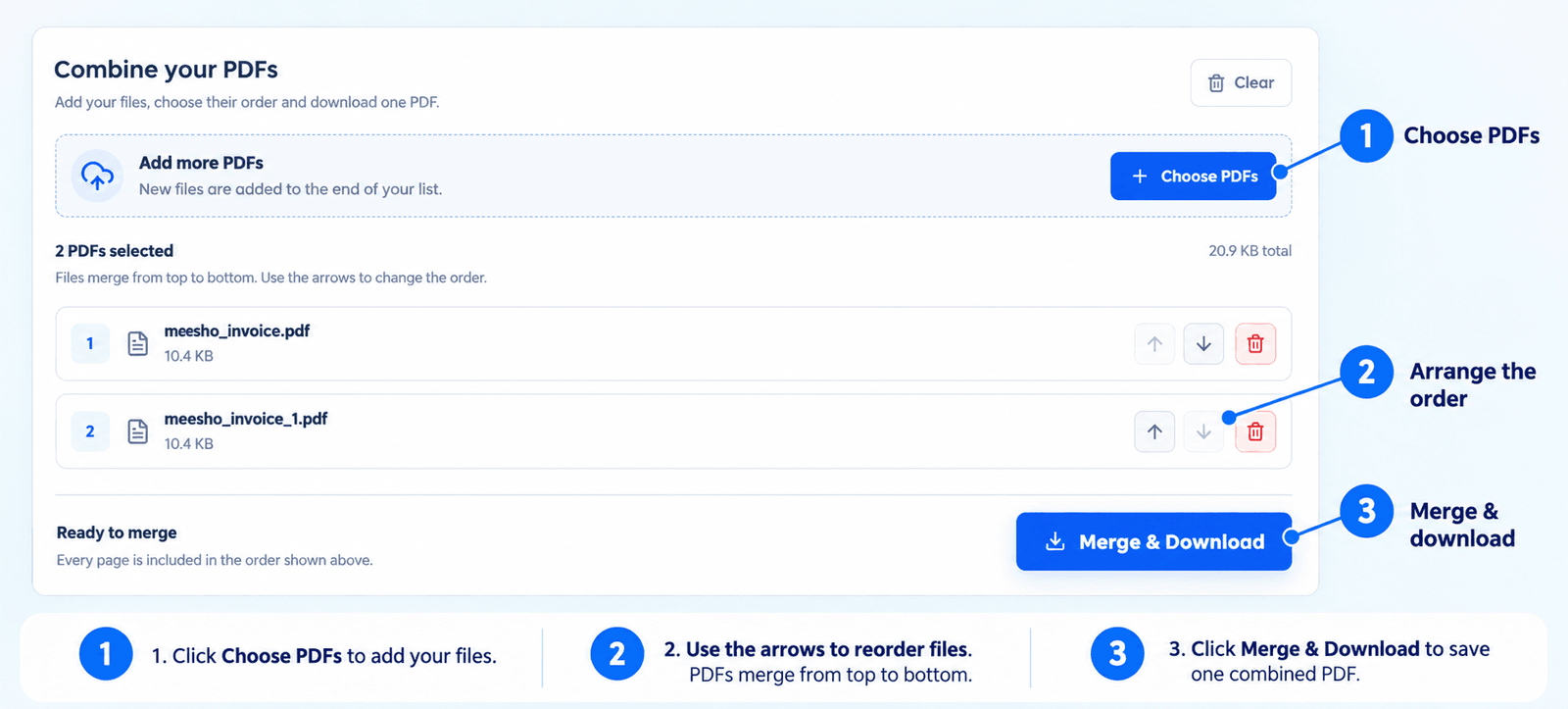
Add at least two PDFs, arrange complete files using the arrows, then select Merge & Download. Open the saved PDF to check its page count and document order.
Supported Files and Limits
| ITEM | Current Support |
|---|---|
| Input format | |
| Minimum selection | 2 files |
| Maximum selection | 30 files |
| Maximum source-file size | 30 MB per PDF |
| Ordering | Move complete files up or down |
| Output | One combined PDF |
| Processing | In your browser |
Large batches require available device memory. If your browser struggles, try a smaller group of documents.
What the Merger Does—and What to Check
The tool includes the pages from your selected PDFs in the displayed file order. It does not automatically compress the result, edit document text, remove private information or correct source errors.Before printing or sharing, confirm:
- All intended documents are included.
- No unwanted or duplicate records were selected.
- Pages appear in the required sequence.
- Important content remains readable.
- The recipient is authorized to receive the included information.
Browser-Based PDF Merging
If a source does not merge
If a file cannot be read, return to the original and check whether it is damaged or password-protected. Try a smaller set to identify the source that fails. Keep the originals
if you need digital signatures, forms or other interactive features; inspect those features separately in the combined copy.
Website analytics and other network activity are separate from this file operation. Read the Privacy Policy for more information.
If you encounter any issues, please feel free to contact us.
Need only part of a document? Split a PDF. Need a smaller file for sharing? Compress a PDF.
Frequently asked questions
Can I change the document order?
Yes. Use the up and down arrows in the selected-file list. Files merge from top to bottom in the displayed order.
Can I combine shipping PDFs from different batches?
Yes, if they are readable, supported PDFs. Check the final page sizes and layouts before printing. Merging does not crop labels or standardize their dimensions.
Will the merged PDF be smaller?
Not necessarily. This tool combines documents; it does not provide PDF compression or guarantee a smaller file.
Can it process password-protected PDFs?
Encrypted or restricted documents may not be supported. Use an accessible copy you are authorized to process. This is not a password-removal tool.
Are my original PDFs replaced?
No. A separate combined PDF is downloaded. Keep your source files for future changes.
Are my documents uploaded for merging?
The current public Merge PDF workspace performs the merge in your browser. Website analytics and other network requests are separate from the document operation.
How many PDFs can I combine?
Select between 2 and 30 PDFs. Each source file can be up to 30 MB. The combined output can exceed 30 MB, so check the destination’s attachment or upload limit.
Can I choose individual pages before merging?
The merger arranges whole PDFs. To keep only selected pages, use PDF Splitter first, then merge the resulting documents.