

Meesho Shipping Label Crop
Prepare supported Meesho shipping-label PDFs for individual printing or four labels per A4 sheet. Use Single page to keep the label and invoice together, or Separate to put recognized sections on different pages. After sorting, match each label and invoice by order reference.
Meesho Shipping Label Crop workspace
Match the Meesho layout to your packing process
Choose Label Only for parcel labels, 4 in 1 for multiple labels on A4, Single page to retain the original page, or Separate to put recognized labels and invoices on different pages.If product picking follows source order, keep Original ordering or match parcels by order reference after sorting. SKU and Courier ordering depend on readable fields. Add up to 30 original PDFs, 30 MB each.
Keep invoice handling separate from label order
Choose the layout first, then decide whether Original, SKU or Courier ordering matches your packing sequence. Separate output depends on recognizing both label and invoice sections.After downloading, match each label and invoice by order reference. Check labels with missing sorting values separately; their position in the saved document may differ from the original stack.
Choose Your Label and Invoice Layout
| layout | what it does | when to use it |
|---|---|---|
| Label Only | Prepares cropped shipping labels with available product details from supported pages. | You need parcel labels and handle invoice records separately. |
| 4 in 1 | Arranges up to four labels per A4 sheet with cutting guides. | You print multiple labels using compatible A4 paper or sheets. |
| Single page | Keeps the label and invoice together on the original page. | Your packing team needs both sections in the same document layout. |
| Separate | Places each recognized label and its invoice on separate pages when both sections can be detected. | You want to print or handle labels and invoices separately. |
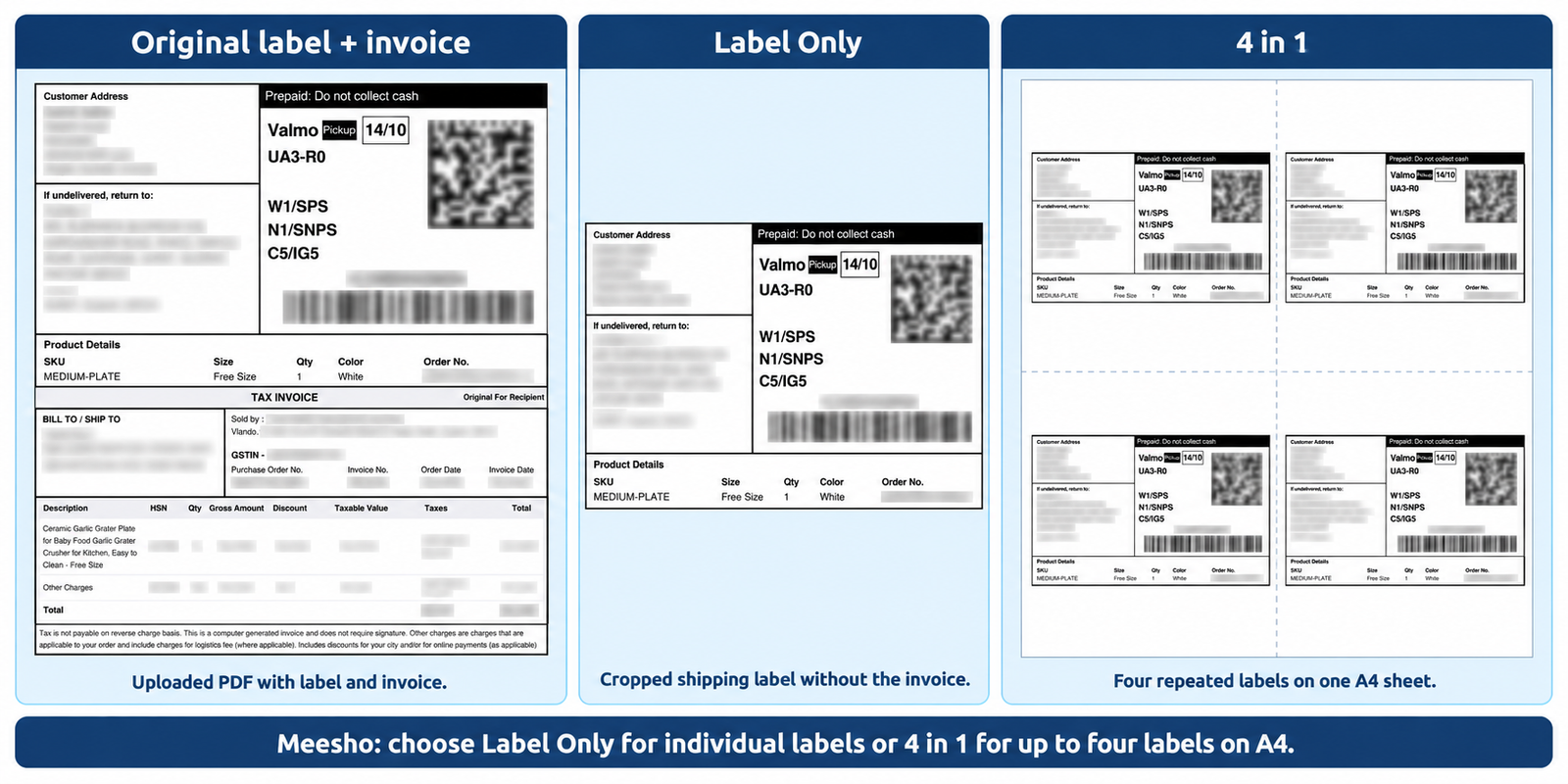
Label Only excludes the invoice section. The 4 in 1 example repeats a sample label to illustrate the A4 arrangement; the tool places up to four selected labels on each sheet and does not create four copies of every label automatically.
Compare the four Meesho layouts before choosing how labels and invoices will be handled at your packing table.
Organize Labels by Product or Courier
Choose how the prepared labels should be ordered:- Original: Keep the selected-file and source-page order.
- SKU: Sort recognized labels using readable product codes.
- Courier: Sort recognized labels using available courier information.
How to Prepare Meesho Shipping Labels
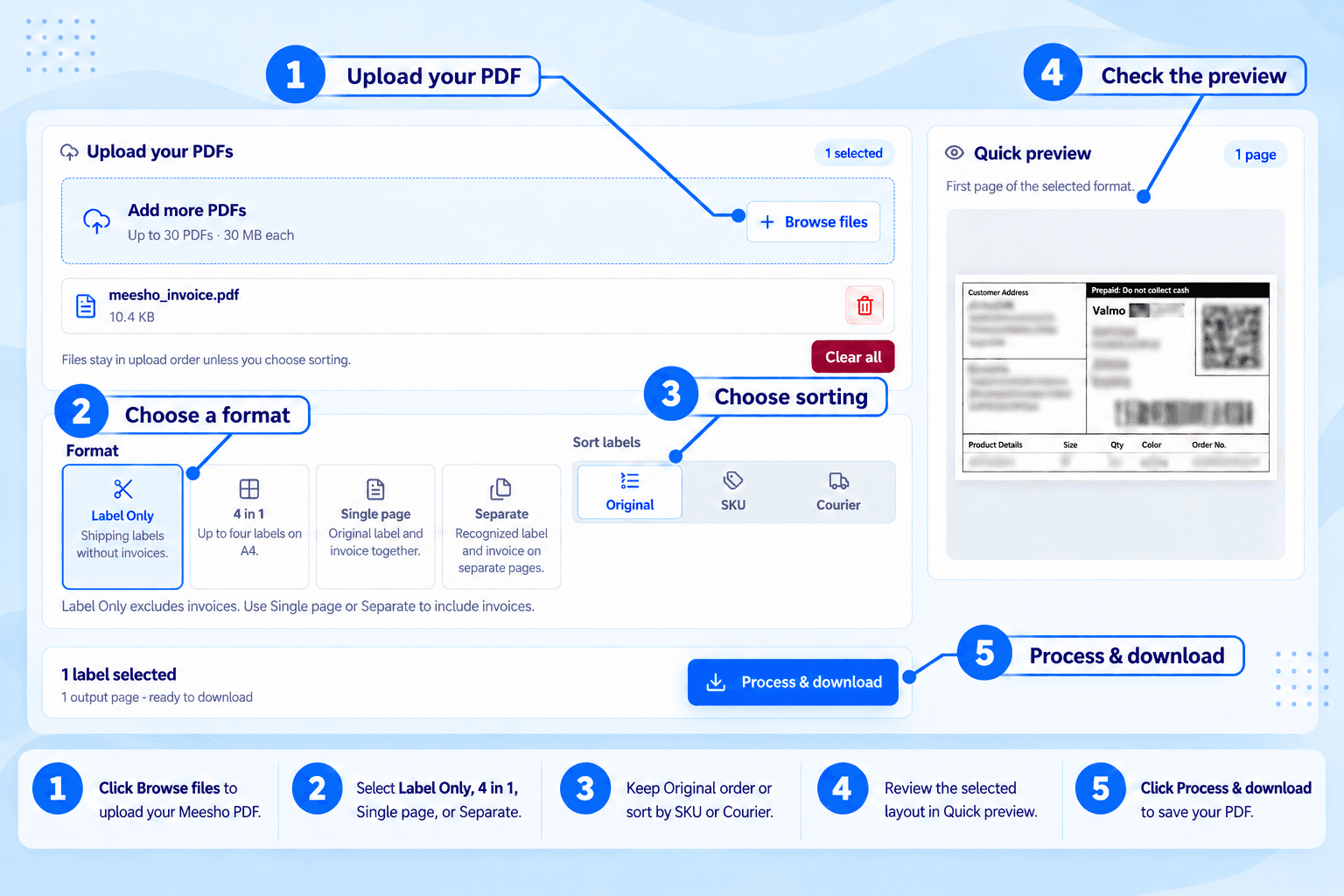
- Add your PDFs. Select the original Meesho shipping documents from your device.
- Check the selection. Remove unrelated files or choose Clear all to start again.
- Select a layout. Choose Label Only, 4 in 1, Single page or Separate.
- Choose the order. Keep Original order or select SKU or Courier sorting.
- Review the preview. Check the output and any recognition warnings.
- Process and download. Keep the page open while the PDF is prepared.
- Print a sample. Inspect the downloaded document and test your printer settings before printing the full batch.
Check Every Order Before Dispatch
Confirm that the delivery address, barcode, order reference and relevant product information remain complete. Check product variants and quantities against the original Meesho order, especially for multi-item purchases.Sorting organizes documents; it does not verify what has been packed inside a parcel.
Choose paper and scaling settings that match the actual output. A cropped label is not automatically a fixed 4×6-inch page. Check the printed sample for clipped edges, small text and barcode readability.
Supported Files and Practical Limits
Use original, readable Meesho PDFs wherever possible. Scanned pages, damaged documents, password protection and unfamiliar layouts may affect processing.Larger batches also need sufficient device memory. If your browser struggles, try fewer files at a time.
Keep the original PDFs for order checks and invoice records. The tool creates a separate download rather than replacing your source documents.
If you encounter any issues, please feel free to contact us.
Frequently asked questions
Is the shipping label cropped automatically?
Yes. For supported Meesho PDFs, the tool detects the invoice boundary and automatically prepares the label-only output.
Can I keep only the shipping label?
Choose Label Only to prepare cropped labels with available product details from supported pages. Check that all necessary delivery and order information remains visible.
What is the difference between Single page and Separate?
Single page retains the label and invoice together on the original page. Separate gives each recognized label and invoice its own page.
What if a document cannot be recognized for cropping or sorting?
Check whether Single page with Original order is suitable. Scanned, modified or unfamiliar PDFs may not process as expected. Do not dispatch using an incomplete label.
Can I use the labels with a thermal printer?
Check the dimensions of the actual output and choose compatible paper and printer settings. Label-only output is not guaranteed to be a fixed 4×6-inch page.
What should I check on multi-item orders?
Compare the products, variants, quantities and order references with the original Meesho order. Sorting organizes documents; it does not confirm the parcel contents.
Is the Meesho label cropper free?
Yes. The current public tool is free to use without an account.
Can I print four Meesho labels on an A4 sheet?
Choose 4 in 1 for supported documents. Check paper size, scaling and barcode readability with a sample print.


