Split PDF Online
Extract selected pages, split custom ranges, or save every page as a separate PDF. Preview the document and download PDFs or a ZIP. Upload one PDF up to 30 MB.
Split PDF Online workspace
Choose whether you need one output or several
Use Select pages to collect chosen pages in one PDF, Page ranges to create separate documents from ranges, or Every page to save individual pages.Add one PDF up to 30 MB. Review its thumbnails before selecting pages, then open each saved output and confirm its page count and first and last page.
How to split a PDF
- Upload your PDF. Choose one PDF from your device or drag and drop it into the upload area.
- Preview the pages. Scroll through the thumbnails and open a page for a closer look.
- Choose a split method. Select specific pages, enter page ranges, or choose Every page.
- Create your files. Click Split PDF to prepare the output documents.
- Download the results. Save individual PDFs or download all results together in a ZIP archive.
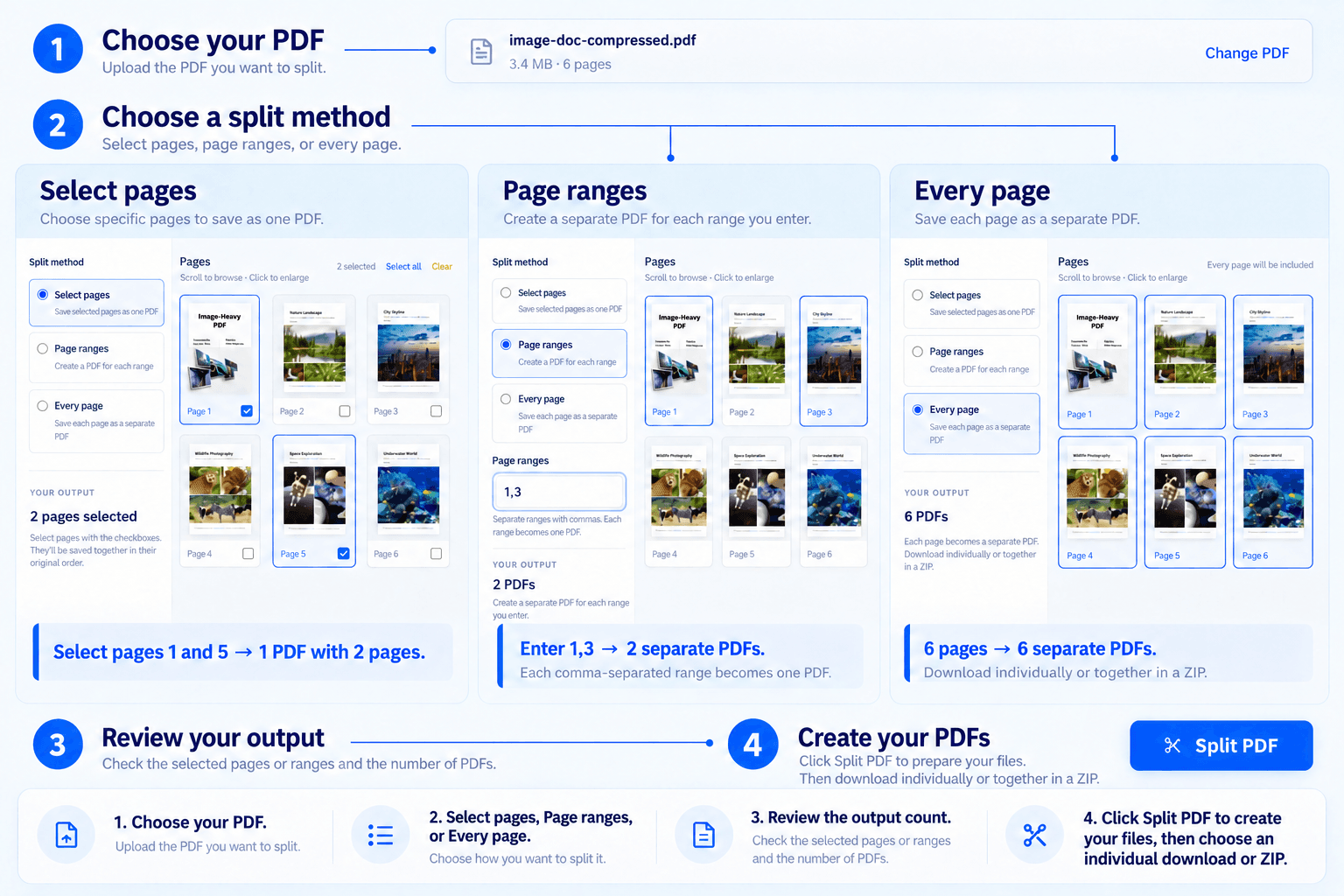
Select pages combines chosen pages into one PDF. Page ranges creates a separate PDF for each entry, while Every page creates individual PDFs. Select Split PDF to prepare the files, then download them individually or together in a ZIP.
Choose how to separate your PDF
Select pages
Use the checkboxes beneath the previews to choose the pages you need. The selected pages are saved together as one PDF, in their original document order.For example, selecting pages 1 and 5 creates one PDF containing those two pages in their original order. Use Select all to include every page or Clear to start your selection again.
Page ranges
Enter page numbers or ranges separated by commas. Each entry creates a separate PDF.| Source | Range entered | Saved PDFs | Pages left out |
|---|---|---|---|
| Five-page document | 1-2, 4 | One PDF with pages 1–2; another with page 4 | 3 and 5 |
Use ascending ranges and page numbers that exist in your document. Invalid ranges are highlighted before you can split the file.
Every page
Create a separate PDF for each page in the document. This option is useful when you need individual invoices, records, forms, or reference pages from a combined file.Download the pages individually or save them together in a ZIP archive.
Preview pages before splitting
Check the document itself rather than relying only on a thumbnail or filename. A page can contain personal or confidential information even when it looks similar to another page. Selecting fewer pages does not redact information on the pages that remain.Scroll through the page previews to find the sections you need. Check the page numbers before creating your output files.
Open any preview to inspect the page in a larger view. Page numbers and selection indicators help you confirm which pages will appear in the output.
Keep original page quality
Pages are copied directly into the new PDFs rather than converted into images. Original page dimensions, text, and image quality are preserved.Document-level features such as bookmarks, interactive forms, and digital signatures may not carry over to the split files. Keep the original document when these features are important.
File limits and downloads
Upload one PDF up to 30 MB and create up to 500 output PDFs in a single split operation.Choose Select pages to create one document, Page ranges to create several documents, or Every page to separate the full PDF. Each result shows its filename, page count, and file size before download.
Password-protected PDFs must be unlocked before processing.
Need smaller files after splitting? Compress your PDFs.
Have a business enquiry or a tool issue? Contact us.
Frequently asked questions
How do I split a PDF into separate files?
Upload your PDF and choose Page ranges or Every page. Enter the ranges you need, if applicable, click Split PDF, and download the resulting documents.
Can I extract specific pages into one PDF?
Yes. Choose Select pages, check the pages you want to keep, and click Split PDF. The selected pages are combined into one PDF in their original order.
How do I save every PDF page separately?
Choose Every page after uploading your document. The tool creates a separate PDF for each page, with individual downloads and a ZIP option for all results.
Does splitting reduce PDF quality?
The splitter copies the original page content without image recompression or full-page rasterization. Page dimensions, text, and image quality are preserved.
Can I preview a PDF before splitting it?
Yes. Scroll through the page thumbnails and open any preview for a larger view before creating your files.
Can I split a password-protected PDF?
Unlock the PDF before uploading it. The splitter cannot process a document that requires a password to open.
Will forms and digital signatures remain unchanged?
Document-level features such as forms, bookmarks and digital signatures may not carry over to split files. Keep the original and check the result.