Image Cropper
Crop JPG, PNG or WebP images with a free selection or fixed aspect ratio. Queue up to 30 images, 30 MB each, and adjust and download each crop separately.
Image Cropper workspace
Crop the composition before resizing
Choose Free or a fixed aspect ratio and move the selection over the area you want to keep. Queue up to 30 JPG, PNG or WebP sources, 30 MB each, then edit and download them individually.A square crop changes the retained shape. Use Image Resizer afterward when the destination also requires specific pixel dimensions.
Frame the Part of the Image You Need
Move and resize the crop selection around the area you want to keep. The result preview helps you inspect the framing before downloading.For ecommerce photos, leave important product features visible. Handles, straps, accessories and packaging may help customers understand what they are buying.
Avoid cropping so tightly that part of the product is missing. A closer crop is useful only when it still represents the item accurately.
Check a square crop before saving
Move a 1:1 selection over the source and inspect all four edges. Keep handles, straps, included accessories and product labels inside the selection when they are part of the item being shown.If the complete product will not fit, use a wider crop or a different source composition. Cropping removes pixels outside the rectangle; it cannot add missing space around the subject.
Choose a Free Crop or Fixed Shape
An aspect ratio describes the relationship between width and height. For example, 1:1 creates a square, while 16:9 creates a wide rectangle.| Crop option | Shape | Example use |
|---|---|---|
| Free | Adjustable width and height | Remove unwanted space without keeping a fixed shape. |
| 1:1 | Square | Prepare a square composition for a product photo. |
| 4:3 or 3:2 | Landscape rectangle | Frame wider products or groups of items. |
| 16:9 | Wide rectangle | Prepare an image for a wide graphic placement. |
| 3:4 or 4:5 | Portrait rectangle | Frame taller products or portrait-oriented graphics. |
| 9:16 | Tall rectangle | Prepare a composition for a vertical placement. |
Check the requirements for your specific destination before choosing a ratio.
Review the Output Dimensions
Before choosing another image in the queue, download the crop you want to keep. Switching sources resets the current edit settings. Use the original again if you need to prepare a different crop.The width and height fields control the crop area in source-image pixels. Choose Free to adjust them independently. With a fixed aspect ratio, changing one dimension adjusts the other to preserve that ratio. The crop must remain within the original image; these controls do not enlarge the selected content.
Cropping removes part of the original image, so the result generally contains fewer pixels. It does not enlarge the remaining area to a separate target size automatically.
If you need specific dimensions after framing, continue with the Image Resizer.
How to Crop Your Product Images
- Add your images. Select supported JPG, PNG or WebP files.
- Choose a file. Select the image you want to edit from the queue.
- Choose a shape. Use Free or select a fixed aspect ratio.
- Adjust the selection. Move the crop area and resize its edges around the subject. If needed, enter the crop width and height in source-image pixels. Free allows independent dimensions, a fixed aspect ratio links them. Keep the crop within the original image.
- Check the preview. Confirm that important product details remain visible.
- Select Crop & Download. Open the saved image and inspect the result.
- Continue through the queue. Select the next image and repeat.
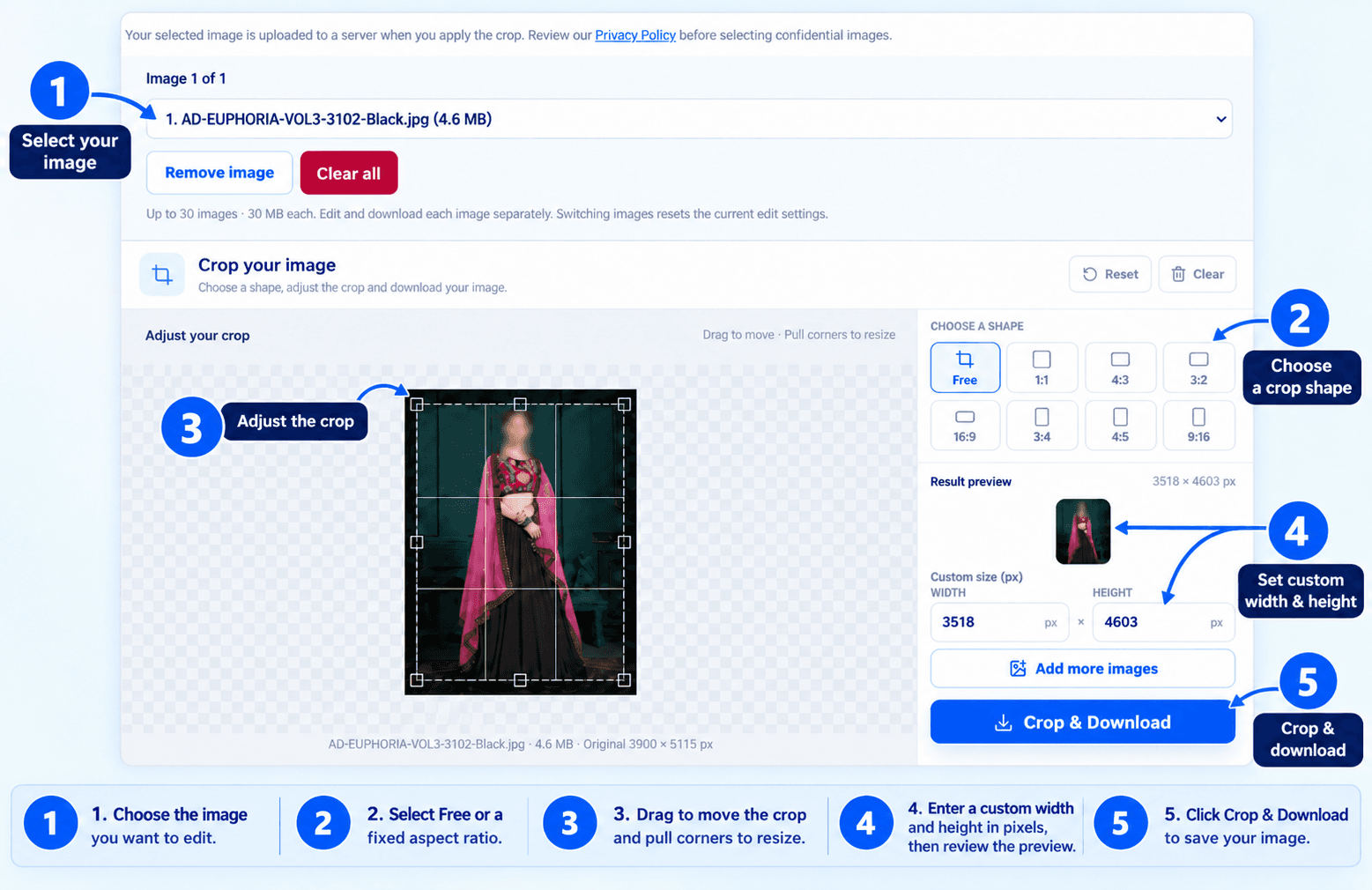
Select an image, choose Free or a fixed aspect ratio, and adjust the crop area. Check its pixel dimensions and preview, then select Crop & Download. Save your result before switching images.
Supported Files and Limits
| Item | Current Support |
|---|---|
| Input formats | JPG/JPEG, PNG and WebP |
| Maximum selection | 30 images |
| Maximum source-file size | 30 MB per image |
| Crop controls | Free selection, fixed aspect ratios and dimension adjustments |
| Preview | Selected-area preview with output dimensions |
| Downloads | Individual cropped images |
Check the Result Before Uploading
Inspect the downloaded file for:- Complete product edges and included accessories.
- Clear details, logos and labels.
- Suitable framing for the intended placement.
- Required dimensions, format and file size.
Keep the original photo so you can make a different crop later. If the finished file is too large, use the Image Compressor and check the result again.
Preparing other product media? Compress videos or convert video formats.
If you encounter any issues, please feel free to contact us.
Frequently asked questions
What is an image cropper used for?
An image cropper removes unwanted portions of an image so you can focus on the subject, reduce empty space, or adjust the composition.
Which aspect ratios can I choose?
Use Free crop or select 1:1, 4:3, 3:2, 16:9, 3:4, 4:5 or 9:16. A ratio controls the shape, not the file size or guaranteed marketplace suitability.
Can I make a square product image?
Yes. Choose 1:1 and frame the product. Use Image Resizer afterward if you need a particular square pixel dimension.
Can I crop images for social media?
Yes. Choose a suitable aspect ratio and adjust the framing. Check the platform’s required pixel dimensions before using the result.
Can I crop all selected images automatically?
No. You can queue up to 30 images, but adjust and download each crop separately. Download the current crop before switching images because edit settings reset.