Image Compressor
Reduce image file size with automatic compression. Add up to 30 supported images, compare original and output sizes, and download files individually or in a ZIP.
Image Compressor workspace
Compare the output before replacing an image
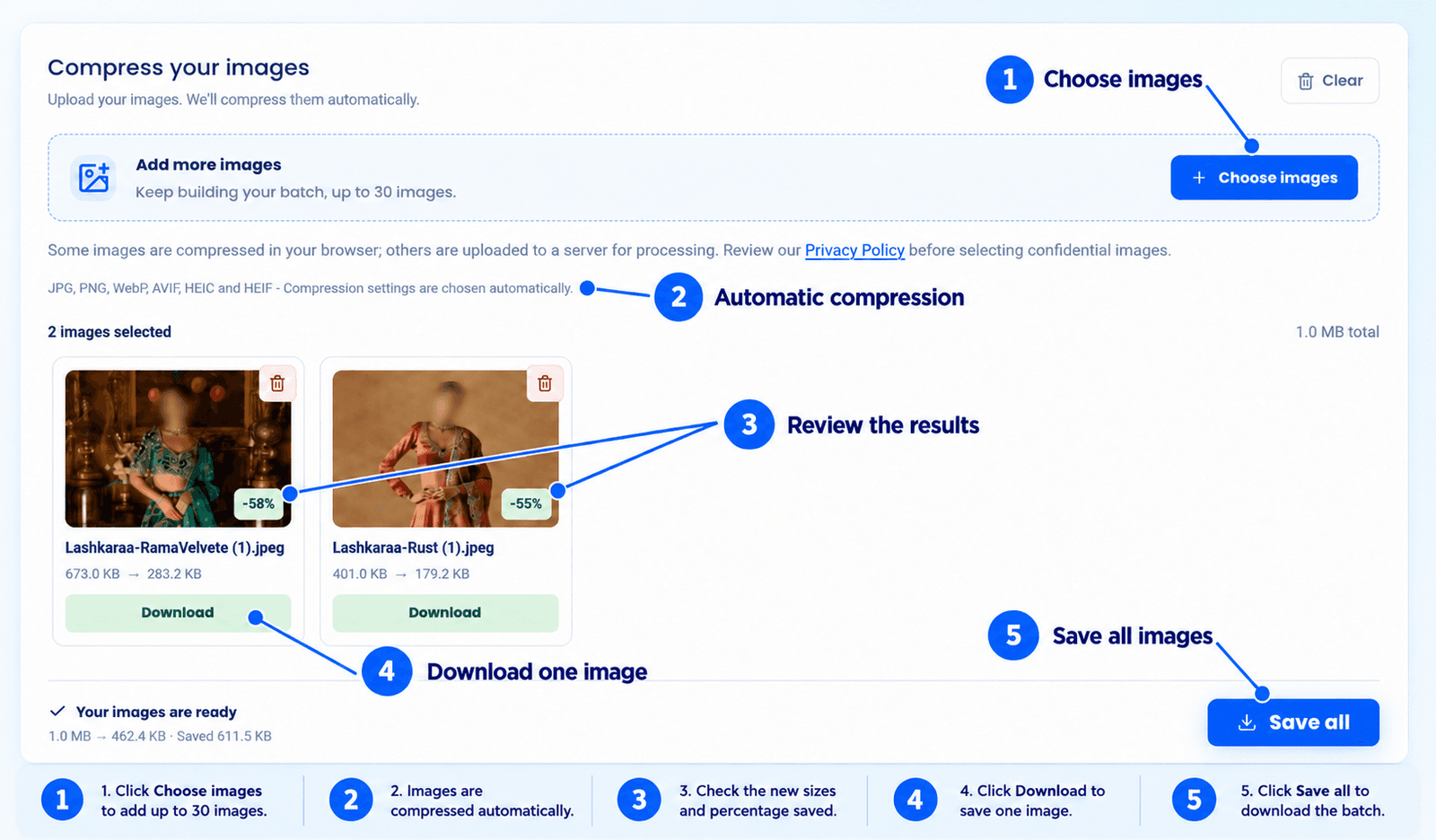
Add up to 30 supported images, 30 MB each. Compression starts automatically. Use the original and output sizes shown for each result to decide whether the reduction is useful, then inspect fine text, edges and transparency in the saved image.A photo, screenshot and transparent graphic can produce different results. Keep the original and check at least one of each source type before reusing settings or replacing a batch.
Compress Photos and Graphics in One Workflow
Download completed images individually, or use Save all to package multiple results in a ZIP. Extract the archive and confirm that every expected image is present and opens correctly.Supported Formats and Upload Limits
| Item | Current Support |
|---|---|
| Input formats | JPG/JPEG, PNG, WebP, AVIF, HEIC and HEIF |
| Maximum selection | 30 images |
| Maximum source-file size | 30 MB per image |
| Compression settings | Selected automatically |
| Size comparison | Original and output file sizes |
| Downloads | Individual results or a ZIP archive for multiple images |
How to Compress Your Images
- Choose your files. Add supported product photos or graphics from your device.
- Wait for automatic compression. Keep the page open while the tool processes your selection.
- Compare file sizes. Review the original and output sizes shown for each completed image.
- Inspect the result. Download a sample and check product detail, colors, logos and text.
- Save your images. Download individual results or select Save all when the batch is ready.
- Check the destination. Confirm that the format, dimensions and file size meet its current requirements.
Understand File Size and Image Dimensions
File size is the storage an image uses, usually measured in KB or MB. Dimensions describe its width and height in pixels.Compression focuses on reducing stored file size. If a marketplace asks for specific pixel dimensions, use the Image Resizer.
For example, a photo may have suitable dimensions but still exceed an upload-size limit. Compression may help with that limit. However, it does not guarantee a specific output size or marketplace acceptance.
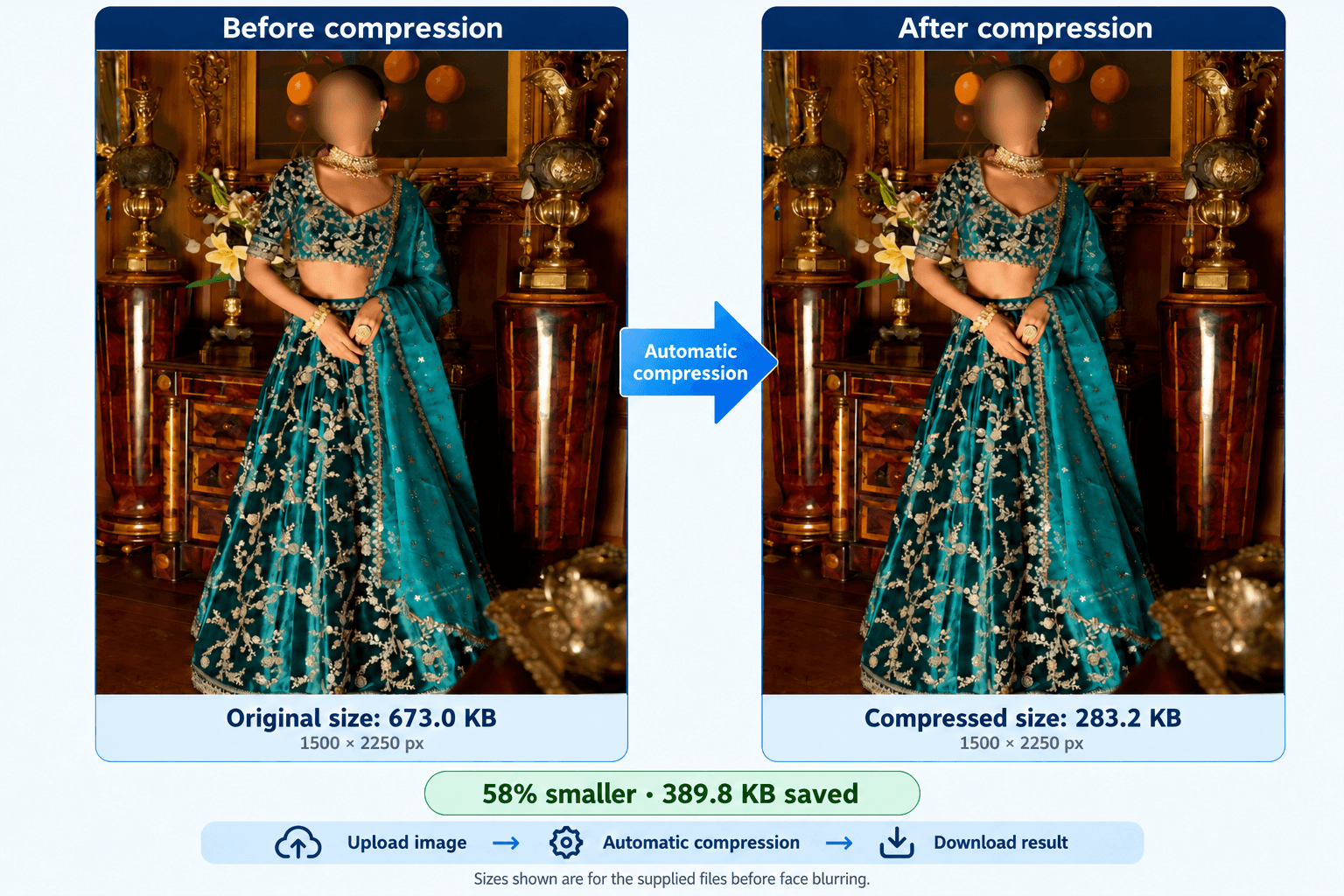
In this example, file size decreased from 673.0 KB to 283.2 KB—approximately 58%, saving 389.8 KB—while dimensions remained 1500 × 2250 pixels. Savings vary by image. Inspect the downloaded result before replacing your original.
Keep Important Product Details Clear
Before using a compressed image, inspect the features customers need to see:- Product color and shape.
- Labels, logos and printed text.
- Texture, stitching and fine edges.
- Included accessories and packaging.
- Background appearance and transparency, where relevant.
What Affects the Compression Result?
Compare the output with the original at the same viewing size. Check fine product text, stitching, edges and background gradients. If the visible difference is unsuitable, keep the original or try another source. Automatic compression does not guarantee an exact size or a useful reduction for every image.Savings depend on the source format, image content and previous optimization. A detailed photograph can behave differently from a simple graphic, and an already optimized file may show little or no reduction.
The current tool chooses settings automatically. It does not provide a manual quality slider or an exact-size target such as 100 KB.
Working with product videos too? Compress videos or convert video formats.
If the image is still above an upload limit
Compare the downloaded size with the destination’s actual limit. The current tool chooses compression settings automatically; it does not guarantee an exact KB target.If the destination permits smaller dimensions, use Image Resizer on a copy and compare the result. If its accepted formats differ, check Image Converter. Change only the properties needed, and inspect fine detail after any additional operation.
If you encounter any issues, please feel free to contact us.
Frequently asked questions
What is an image compressor used for?
An image compressor reduces image file size to make photos easier to upload, share and store. Check the result to make sure important product details remain clear.
Which image formats are accepted?
Configured inputs are JPG/JPEG, PNG, WebP, AVIF, HEIC and HEIF. Processing depends on the image encoding and available decoder support.
Do I need to choose a compression setting?
No. Compression starts automatically after selection using settings chosen by the tool. The current workspace does not provide a manual quality slider.
Will compression change image quality?
It can change visible detail. Inspect product colors, logos, text and fine edges in the downloaded result. Keep your original images.
Will every image become smaller?
No. An already optimized image may show little or no saving. Review the original and output sizes instead of expecting a fixed percentage reduction.
Can I download the batch together?
Yes. Save all packages multiple completed results in a ZIP archive. Individual downloads are also available. Extract the ZIP to use the separate files.
Does compression guarantee marketplace acceptance?
No. Confirm the current format, dimension, background and file-size requirements for the marketplace, category and image placement.
Can I compress an image to exactly 100 KB?
The compressor selects settings automatically and does not offer an exact-size target. Compare the result with your destination’s limit; use Image Resizer if smaller pixel dimensions are also suitable.