
Video Compressor Online
Compress videos online using quality presets, with optional resolution and audio controls. Add up to 10 supported videos and compare the result before downloading. File-size savings depend on the source and settings.
Video Compressor Online workspace
Choose a preset using a representative clip
Read the workspace notice to see where processing runs, then choose Higher quality, Balanced or Smaller file. Use More options only when you need a different output format, resolution limit or audio removal.Check a difficult scene in the downloaded result: moving detail, small text or speech. Compare the actual file size and keep a version that remains useful; a smaller result is not guaranteed for every source.
How to compress a video
- Select your videos. Choose files or drag them into the upload area. You can add several videos to the same batch.
- Select a compression level. Choose Higher quality, Balanced, or Smaller file. The selected settings apply to every file in the list.
- Adjust More options if needed. Choose MP4, WebM, or MOV output, limit the resolution, or enable Remove audio for silent videos.
- Start compression. Select the Compress button and keep the page open. Each video shows its own status, file size, and result.
- Preview and download. Open a video in the preview popup, then use its download icon to save the result. When two or more files are ready, you can download them together in a ZIP.
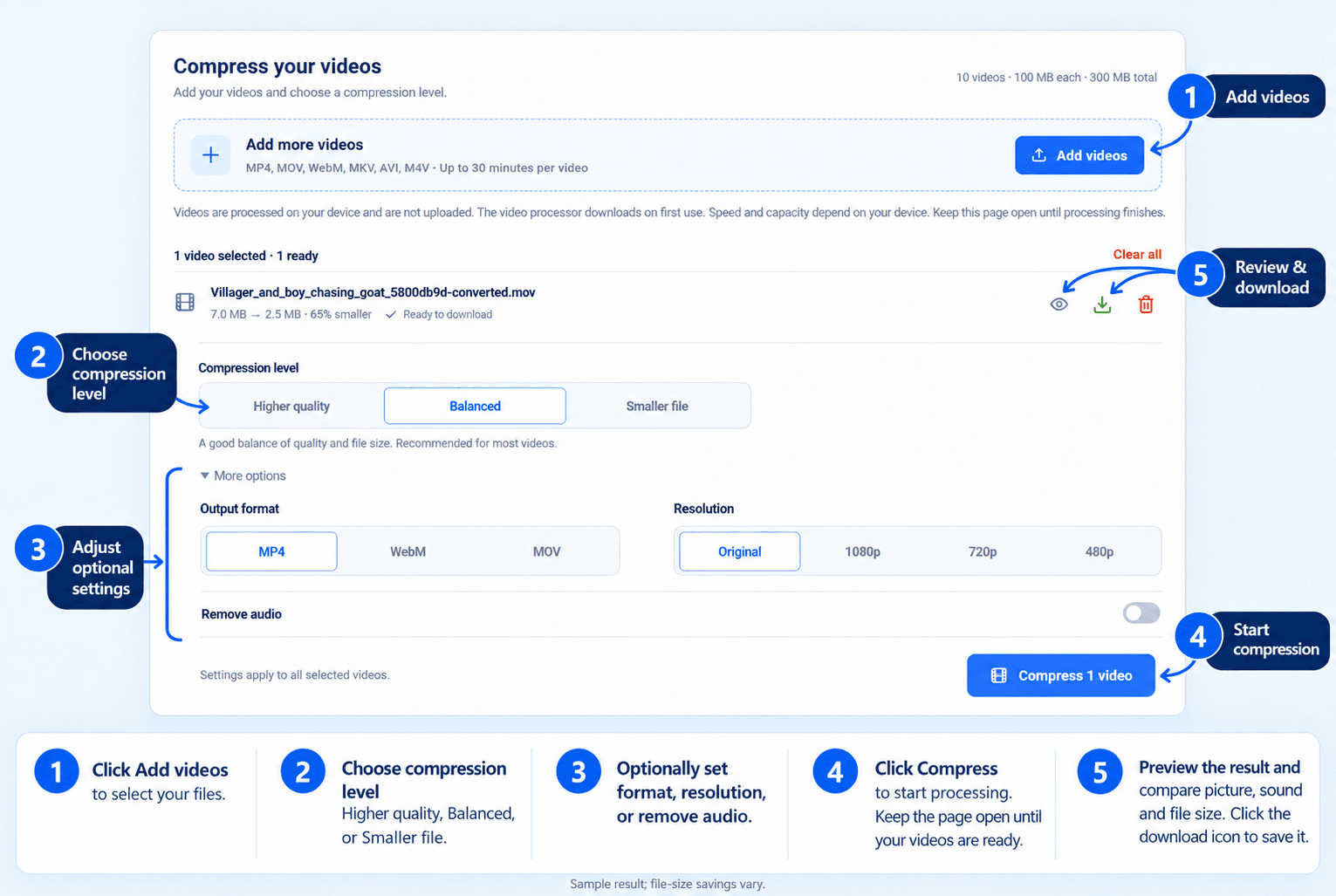
Add videos, choose a compression level and adjust optional settings before starting. Preview each completed result and compare its quality and file size before downloading. Savings vary by source and settings.
Choose your compression settings
| setting | what it does |
|---|---|
| Higher quality | Retains more visual detail, usually with a larger file than stronger compression presets. |
| Balanced | Balances visual quality and file size; a useful starting point for most videos. |
| Smaller file | Applies stronger compression. Fine details may appear softer. |
| Output format | Choose MP4, WebM or MOV under More options. Confirm that the receiving player accepts the saved format and codecs. Changing format alone does not guarantee a smaller file. |
| Resolution | Keeps the original resolution as the target, or limits it to 1080p, 720p, or 480p. Smaller videos are not enlarged. |
| Remove audio | Creates a silent video when you do not need the sound. |
Working toward a destination’s file-size limit
This tool uses quality presets and resolution limits rather than an exact target-size control. Process a representative source, compare the saved size and inspect picture and sound before trying a stronger setting.For a compatibility problem rather than a size problem, use Video Converter. Keep the original when comparing settings.
Supported formats and upload limits
- Upload formats: MP4, MOV, WebM, MKV, AVI, and M4V.
- Output formats: MP4, WebM, and MOV.
- Batch limit: Up to 10 videos.
- Maximum file size: 100 MB per video, with 300 MB total per batch.
- Maximum duration: 30 minutes per video.
Check picture, sound and file size
The file list shows original size, processed size and the percentage saved when the result is smaller. Already optimized videos can become larger. Compare the original and saved video at the same viewing size and timestamp. Inspect small text, movement and required audio, then play the beginning, middle and end. Check the output size against your destination’s limit. If needed, compare another preset or resolution limit using the original. Remove audio only when silence is intentional.Processing time depends on the video, settings and available resources. On-device processing also depends on your device and the initial processor download; server processing, when used, depends on upload speed and server load. A failed file does not prevent completed results from remaining available. Presets do not guarantee a particular output size.
Have a business enquiry or a tool issue? Contact us.
Frequently asked questions
Can I compress multiple videos at once?
Yes. Add up to 10 videos, with a maximum of 100 MB per file and 300 MB total. Each video can be up to 30 minutes long. Download completed files individually or together in a ZIP.
Can I compress a video to an exact size, such as 10 MB?
The tool offers quality presets and resolution limits rather than an exact target-size setting. Compress the video, review its size, and adjust the settings if necessary.
Will compression reduce video quality?
Compression can reduce visual detail. Higher quality retains more detail, while Smaller file prioritizes a lower file size. Keep the original video and review the result before sharing it.
Why is my compressed video larger than the original?
The source may already be efficiently encoded. A different output format or encoding can produce a larger file. Try stronger compression or a lower resolution and compare the result.
Do I need an account?
No. The current public video tools are free to use without creating an account.
Are my videos uploaded for processing?
Check the processing notice in the workspace before selecting files. When it shows on-device processing, selected video contents stay on your device for this operation. If it shows server processing, selected videos are uploaded when you start. Processor downloads, analytics and other website requests are separate from the video contents.